Thursday, November 7, 2013

SCCM 2012 - WSUS and Software Update Point

In Windows 2008R2 - WSUS Installation I covered how to install WSUS on a stand alone server which would then be utilized by SCCM. In this post I am going to cover how to install WSUS and the Software Update Point site role on our Primary server and have it function as both.

 WSUS Installation:
Before we install WSUS we need to setup a storage location to house the updates. This drive should be an NTFS drive with a minimum of 2GB of free space. On a drive other than the system drive create a folder called WSUSUpdates and share that folder with everyone as read only. 

Click Close

Note: You will need to repeat this step for all Primary and Secondary servers that will be hosting Software Update Point.

Next you need to download and install the Microsoft Report Viewer 2008 Redistributable. It is available from Microsoft.

Once we have our storage location and Report Viewer installed we can start the WSUS install. On our SCCM server open Server Manager and Select Add Role. In the Add Roles Wizard Check Windows Server Update Services.

You will be prompted to add additional roles for IIS, Click Add Required Role Services.

Click Next

We don't need to add any additional roles at this point so Click Next

Click Next

Click Install

The wizard will download all of the required WSUS install files.

Then you will get a new window for the WSUS 3.0 SP2 Setup

Accept the EULA and Click Next

Check Store updates locally and choose the folder you created earlier. Click Next

I am going to run the database locally so I put it in the same folder that the updates will go in.

Since we already have SCCM using IIS on this server we do not want to use the Default Web site. Select the Create a Windows Server Update Service site and Click Next

Click Next

You can monitor the progress of the install.

Click Finish when complete.

You will be prompted to setup WSUS after the install has finished Click Cancel, we will be configuring these settings through SCCM.

Click Close

Note: You will need to repeat these steps for all Primary and Secondary servers that will be hosting Software Update Point.

Configure Software Update Point

Now that WSUS is installed, open the SCCM Console. In the Administration Space go into Site Configuration > Sites. Right Click on your SCCM server and Add Site System Role. If not already selected browse your site server and Click Next.

Setup your Proxy Server if required for your environment, otherwise Click Next

Check Software update point and Click Next

Remember that we elected to create a new web site during the WSUS install using Port 8530, this requires us to choose the second option for WSUS configuration. Otherwise we will not be able to connect SCCM to WSUS. Click Next

Click Next

Since this will be our Primary WSUS server Select Synchronize from Microsoft Update.

Note: When configuring additional Primary and Secondary servers the only option available here will be Synchronize from an upstream data source location. This is OK, what it means is all of the other SUP servers will rely on this one for which updates to download and deploy.

I like to keep the synchronization schedule fairly short in case a critical update is release mid cycle, but you can configure it according to your patching plan. Click Next

Dealers Choice here. Click Next

You can select which ever classifications you require for your Patching Plan. Click Next

Note: If you plan to install Endpoint Protection in your enterprise you will need to select Definition Updates

You can select the products that are appropriate for your enterprise. Keep in mind that everyone you select will increase the time it will take to complete the first synchronization. It is better to not select anything here and add items after the first synchronization. Click Next

Select the appropriate languages and Click Next

Click Next

Click Close

Depending on the number of products you selected it may take several hours to complete the first Synchronization. There are several logs you can monitor to ensure that the sync is running normally.

C:\Program Files\SMS_CCM\Logs\WUAHandler.log - Provides information on the synchronization with Microsoft, WSUS and SCCM

C:\Program Files\SMS_CCM\Logs\UpdatesDeployment.log - Provides information about the deployment on the client, including software update activation, evaluation, and enforcement. Verbose logging shows additional information about the interaction with the client user interface.

C:\Program Files\SMS_CCM\Logs\UpdatesHandler.log - Provides information about software update compliance scanning and about the download and installation of software updates on the client.

C:\Program Files\SMS_CCM\Logs\UpdatesStore.log - Provides information about the compliance status for the software updates that were assessed during the compliance scan cycle.

Note: Depending on the version of WSUS installed and the Version of SCCM you may be required to install the following updates before the initial synchronization may occur:

KB2530678 - KB2720211 - KB2734608

Setup Group Policy
You can utilize the Software Update Point as a method of installing the SCCM agent. Software update-based client installation utilizes SUP to manage client installs in the same manner that updates are deployed.

Keep in mind that in order to use this feature, WSUS and SUP need to live on the same server and it must be an active software update point on a primary site.

Note: The following actions will need to be performed by someone with Domain Administrator level access in Group Policy Management.

On a Domain Controller open Group Policy Management. Expand out Forests and Domains. Right Click on Group Policy Objects and Select New. I generally like to keep policies as descriptive as possible, but you can call it what ever suits you. Click OK

Expand out Computer Configuration > Policies > Administrative Templates > Windows Components > Windows Update

Double Click on Specify intranet Microsoft Update service Location. Select Enabled. You can add a comment if you like. I generally do to help remind me later of what this setting was used for. In Options, enter the URL of the server including port 8530 in both fields. Click OK

Now Double Click on Configure Automatic Updates. Select #4 and define the schedule according to your patching plan. Click OK
Exit out of the Group Policy and apply it to the appropriate OU's where your computers and servers reside.

Back on your SCCM Server highlight the primary server you were just working on and Click Client Installation Settings the Software Update-Based Client Installation.

Check Enable software update-based installation. Click OK


More to come!

If you like this blog, give it a g+1

Monday, October 21, 2013

SCCM 2012 - Adding a Secondary Site

In SCCM 2012 Installation, we covered how to setup your primary site. We are going to take that one step further now and setup a secondary site under your primary. We will be using this secondary site for replication to handle the workload of a smaller office, that has a few satellite offices connected to it.

As we did in SCCM 2012 Install Part 1 we covered the prerequisites needed for the install.
  • .NET 3.5
  • .NET 4.0
  • Background Intelligent Transfer Service (BITS)
  • IIS6 WMI Compatibility
  • Remote Differential Compression (RDC)
For .NET 3.5
Open Server Manager
Click on Features
Click Add Features
Check the box for .NET Framework 3.5.1 Features
     You will be prompted to install: 
     Web Server (IIS) and Windows Process Activation Service
     Click Add Required Role Services to continue
     On Web Server (IIS) Click Next
     On Select Role Services Click Next
     On Confirm Installation Selections Click Next 

For .NET 4.0
If you don't already have a copy of .NET 4.0 you can get it from Microsoft.

Run the .NET 4.0 executable
Check I have read and accept the license terms
Click Install (this will take a few minutes depending on the specs of the box)
Click Finish

For BITS
Open Server Manager
Click on Features
Click Add Features
Check the box for Background Intelligent Transfer Service (BITS)
     You will be prompted to install: 
     Web Server (IIS) Management Tools and Remote Server Administration Tools
     Click Add Required Role Services to continue
     On Web Server (IIS) Click Next
     On Select Role Services Click Next
     On Confirm Installation Selections Click Next

For IIS6 WMI compatibility
After BITS is installed you will need to add one additional sub-feature to IIS, the IIS6 WMI Compatibility.
In Service Manager
Click Roles
Click Web Server (IIS) under Roles Summary
Scroll down to Role Services and Click Add Role Service
Scroll down and expand Management Tools, then expand out IIS 6 Managment Compatibility
Check the box for IIS 6 WMI Compatibility
Click Install

For Remote Differential Compression (RDC)
Open Server Manager
Click on Features
Click Add Features
Check the box for Remote Differential Compression (RDC)
Click Next
Click Install

One additional item to configure before we do the install is to go into your domain controller and give your secondary server full control of the System Management container in ADSI.edit. In ADSI.edit expand out the domain, then Click System. Right Click on the System Management container and select Properties. On the Security tab Click Add. Add the name of the Secondary Server then click Advanced. Edit the Secondary server and be sure to select This object and all descendant objects.

Once we have the secondary server ready to go lets log back into our Primary server and go to the Administration space, expand Site Configuration then click on Sites. Go ahead and highlight your Primary site server and Click Create Secondary Site.

The Create Secondary Site wizard will load. Click Next

Give your Secondary Site a site code, enter in the name of the Secondary Server and a Name for this serer. I left the installation directory as the default. Click Next

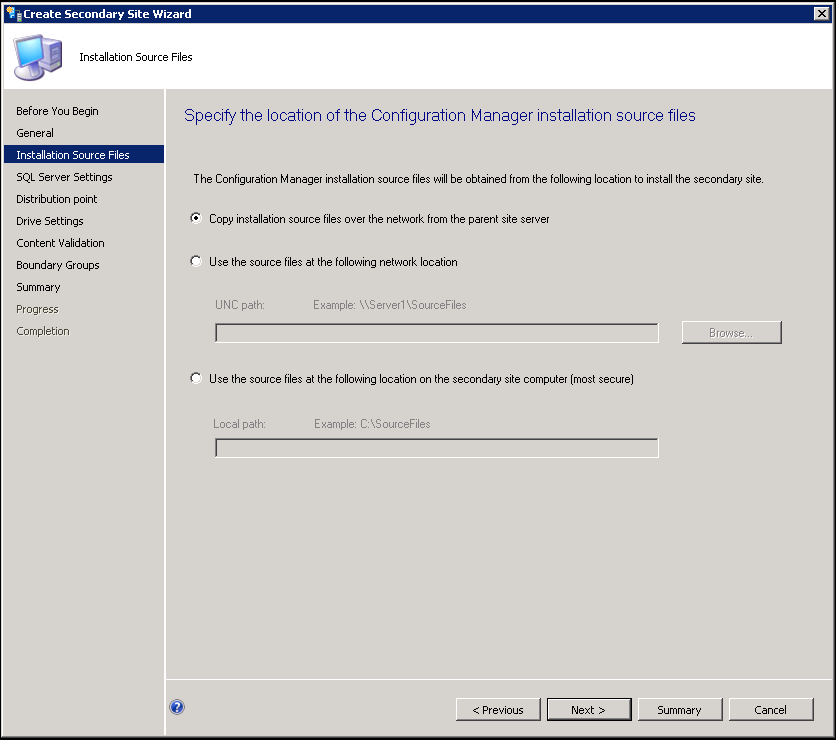
Here you can choose to have the source files copied over automatically or you can manually copy them over. I leave this as the default. Click Next

This is a small server so I am going to use SQL Server Express on in instead of installing a full blow version locally. Click Next

Click Next

Click Next

Click Next

I already had a boundary group setup for this server so I added it. If you do not have one ready you can Click Create and make a new one. Otherwise you can click Click Next

Review the settings and Click Next

You will get a confirmation that the wizard completed successfully. Click Close.

From here you can monitor the installation progress. Highlight your new secondary server and click Show Install Status.

This will give you a step by step tracker on how the install is doing.

Microsoft also provides a handy tool to keep an eye on the install logs. In the SCCM install files you will find SMSSETUP\TOOLS\CMTrace. This is a handy log analyzer which will tell you what if anything during the install failed.
The logs to watch on your Primary server are:
C:\ConfigMgrSetupWizard.log
C:\ConfigMgrSetup.log
C:\Program Files\Microsoft Configuration Manager\Logs\sender.log

Between the two tools you should have a pretty clear understanding why if anything does fail during the install.


More to come!

If you like this blog, give it a g+1

Wednesday, October 9, 2013

SCCM 2012 - Install Product Key

It seems that since all of the components of System Center are written by different teams within Microsoft they can't seem to stay consistent on how you install a product key. You will remember from one of my previous posts SCOM 2012 - Install Product Key  that I talked about how to install the product key for SCOM via Power Shell command. In SCCM it is completely different.

If during your SCCM install you went with the evaluation version and have now decided to upgrade to the full version you need to re-run the installation setup. Click Install

Click Next

On the Available Setup Options, Select Perform site maintenance or reset this site

Note: I have seen it where this option is greyed out. If this happens to you go into Control Panel > Programs and Features > SCCM Installation Change/Repair. This should bring up the option to Perform site maintenance.

Enter your product key and Click Next

Accept the EULA and Click Next

It will run for a few seconds and complete

More to come!


If you like this blog, give it a g+1

Monday, June 3, 2013

SCCM 2012 - Creating Device Collections From an Active Directory Organizational Unit

With our device discoveries up and running I wanted to dedicate this segment to creating device collections. This can be useful if you need to isolate specific devices for one reason or another, such as software polices or specific client settings. There are quite  a few different ways to setup Device Collections. I am going to focus on creating a collection based on OU's in Active Directory which in my opinion is one of the best ways to manage device collections long term as long as the device has the client installed on it.

In Assets and Compliance, Click Device Collections. You will see a few that are created automatically by default. Lets go ahead and make a new one. Right Click on Device Collections and Select Create Device Collection.

The Create Device Collection Wizard will open. Go ahead and give this collection a name and a description if you like, then Click Browse

For this example we will use All Desktops and Server Clients. Click OK then Click Next

 On the Membership Rules Click Add Rule then select Query Rule

This will bring up the Query Rule Properties window. Go ahead and give the query a name then Click Edit Query Statement

Go to the Criteria Tab then click on the Yellow Star

Leave the Criterion Type as Simple Value. Click Select

For the Attribute Criteria Select System Resource as the Atribute class and System OU Name for the Attribute. Click OK

Back on the Criterion Properties window Click Value.

You will be presented with all of the available OU's in your Active Directory structure. In the case of this lab we only have Domain Controllers and Servers (manually created). We highlight Servers and Click OK
Note - Only OUs that are populated with active (not disabled) computer objects will show up on this list. Empty OUs will not. 

Click OK

Click OK

Here you will see the fully built query. Click OK

So we have returned to our Membership Rules window. You can define if you want to run incremental scans by checking Use incremental updates for this collection. We are going to just use scheduled scans for this segment so lets go ahead and modify the discovery scan. Click Schedule

Since we have a fairly small amount of servers in our lab we are going to set the interval low. In a live production environment you wouldnt want to set it any lower than about once ever twenty-four hours as it will cause increased network traffic during the scans. We are going to run it every ten minutes. Click OK

Click Summary

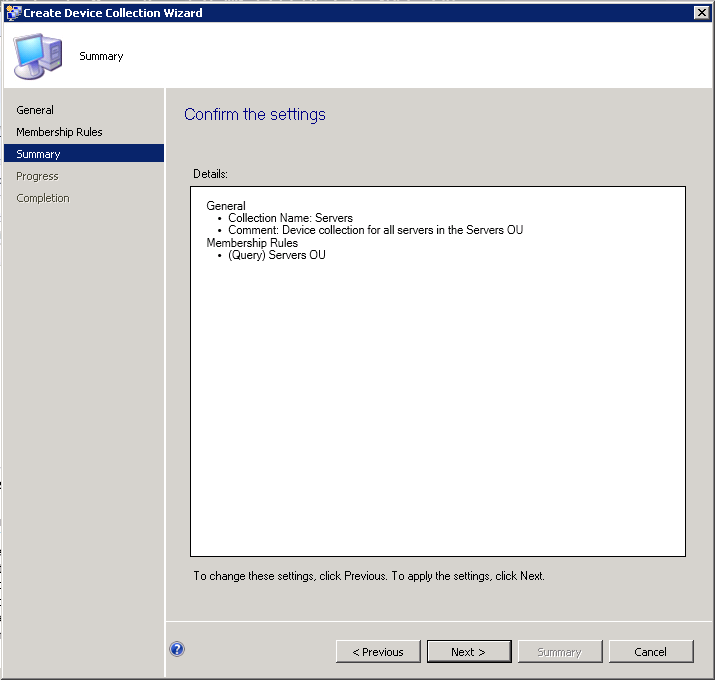
You can review the results of the Collection. Click Next

You should get a success notification. Click Close

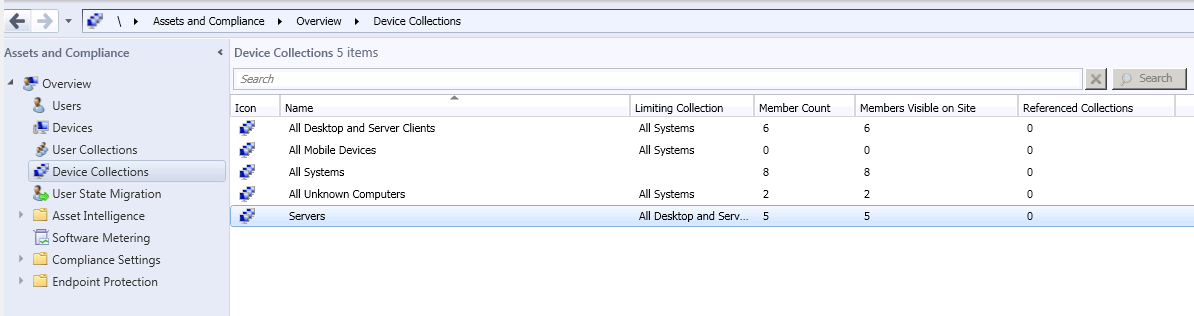
Back on the Device collection window you will see your newly created collection. It may take a few minutes to query depending on the size of your environment but if you refresh after a few minutes you should see servers being added to the collection. You can validate the collection by Right Clicking on it and selecting Show Members


More to come!


If you like this blog give it a g+1

Wednesday, May 22, 2013

SCCM 2012 - Adding SCCM Roles

Now that SCCM is up and running and we have users and devices discovered, and we have deployed clients to them we want to look at expanding the role of the site server. There are several roles a Site server can perform and we will talk briefly about them as well as how to install these roles.

There are 18 total roles available in SCCM 2012. Upon installation and deployment of a new site several roles are installed by default. Additional roles can be added after deployment.

Site Server Roles (Default):
Configuration Manager site server - The site server role is automatically installed on your central administration site or primary sites. When you install a secondary site, the site server role is installed on the server that you specify as the secondary site server.
Configuration Manager site system - Site systems are computers that provide Configuration Manager functionality to a site. Each site system hosts one or more site system roles. This role is assigned during Configuration Manager site installation or when you add an optional site system role to another server.
Configuration Manager component site system role - Any site system that runs the SMS Executive service also installs the component site system role. This role is required to support other roles, such as a management point, and it is installed and removed with the other site system roles.
Configuration Manager site database server - A site system role that runs Microsoft SQL server and hosts the configuration Manager Site Database
SMS Provider - The SMS Provider is the interface between the Configuration Manager console and the site database. This role is installed when you install a central administration site or primary site. Secondary sites do not install the SMS Provider.

Site Server Roles (Optional):
Application Catalog web service point - A site system role that provides software information to the Application Catalog website from the Software Library.
Application Catalog website point - A site system role that provides users with a list of available software from the Application Catalog.
Asset Intelligence synchronization point - A site system role that connects to Microsoft to download Asset Intelligence catalog information and upload uncategorized titles so that they can be considered for future inclusion in the catalog.
Distribution point - A site system role that contains source files for clients to download, such as application content, software packages, software updates, operating system images, and boot images. You can control content distribution by using bandwidth, throttling, and scheduling options.
Fallback status point - A site system role that helps you monitor client installation and identify the clients that are unmanaged because they cannot communicate with their management point.
Management point - A site system role that provides policy and service location information to clients and receives configuration data from clients. You must install at least one management point at each primary site that manages clients, and at each secondary site where you want to provide a local point of contact for clients to obtain computer and user polices.
Endpoint Protection point - A site system role that Configuration Manager uses to accept the Endpoint Protection license terms and to configure the default membership for Microsoft Active Protection Service.
Enrollment point - A site system role that uses PKI certificates for Configuration Manager to enroll mobile devices and Mac computers, and to provision Intel AMT-based computers
Enrollment proxy point - A site system role that manages Configuration Manager enrollment requests from mobile devices and Mac computers.
Out of band service point - A site system role that provisions and configures Intel AMT-based computers for out of band management.
Reporting services point - A site system role that integrates with SQL Server Reporting Services to create and manage reports for Configuration Manager.
Software update point - A site system role that integrates with Windows Server Update Services (WSUS) to provide software updates to Configuration Manager clients.
State migration point - A site system role that stores user state data when a computer is migrated to a new operating system.
System Health Validator point - A site system role that validates Configuration Manager Network Access Protection (NAP) policies. It must be installed on a NAP health policy server.
Windows Intune connector - A site system role in Configuration Manager SP1 that uses Windows Intune to manage mobile devices in the Configuration Manager console.

Installing Roles:
Now that we know a little bit more about the types of roles that are available, lets go ahead and install the Application Catalog Web Service Point and Application Catalog Website Point roles. We need to make sure we add two additional IIS Role Services:
  • Windows Authentication
  • ASP.NET
Open Service Manager and Click on Roles. Scroll down to Web Server (IIS) and Click Add Role Services. In the Add Role Services wizard check Windows Authentication and ASP.NET. You will be prompted to add additional roles. Click OK. When the Install finishes, go back to the Configuration Manager Console.In the Admin space expand Overview then Site Configuration then Click Servers and Site System Roles. Right Click on your site server and Click Add Site System Roles.

The Add Site System Role wizard will open up. Click Next

Check  Application Catalog Web Service Point and Application Catalog Website Point. Click Next

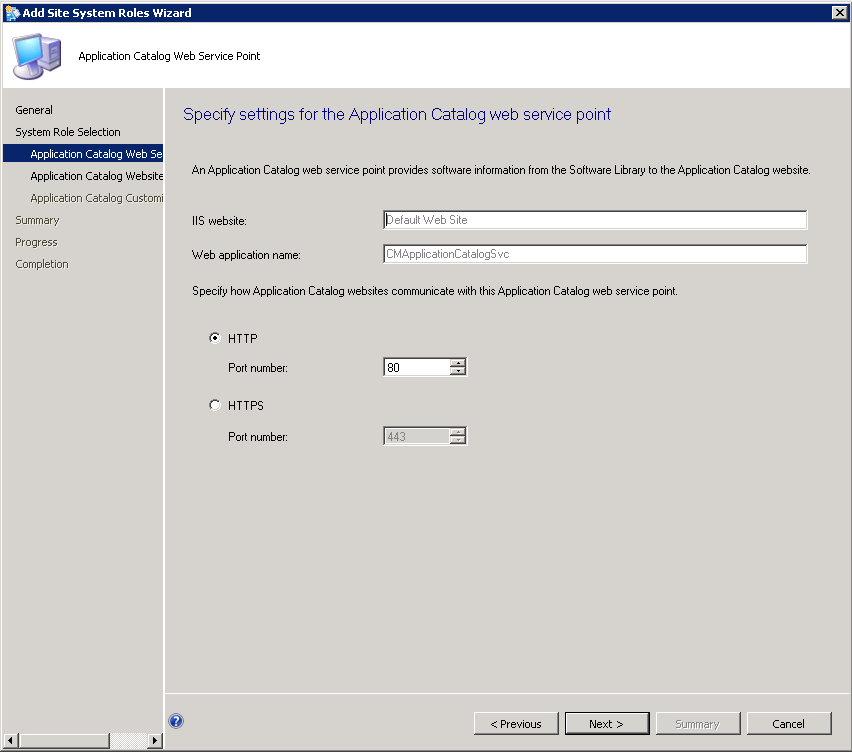
On the Application Catalog Web Service Point page you can define the IIS website and Website Application Name (URL) of the this site, it will be in http(s)://<servername>/<website application name> format. You can also determine if you want to use http or https. Click Next

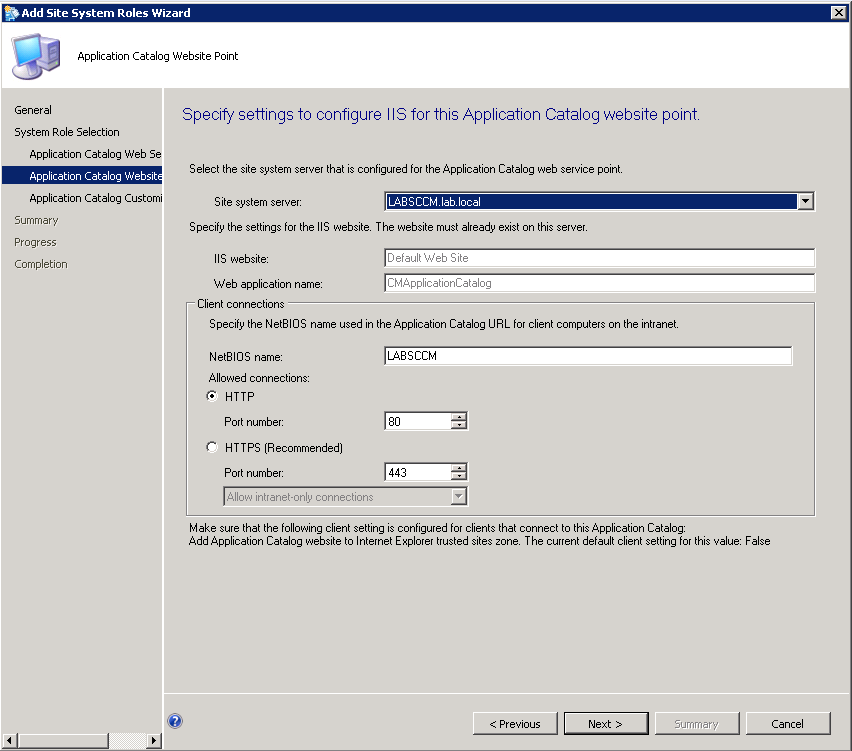
On the Application Catalog Website Point page you can define IIS website, Website application name and http / https port similar to above but you can also define the site system server (the default in our case) and the NetBIOS name (also the default). Click Next

Here you can do a little bit of custom branding by providing your organization name and selecting a  custom color theme (these can be changed later). Click Next

Review your settings and Click Next

You will get a success that the wizard has successfully kicked off the installation. You can review the progress of the install on the Monitoring space under System Status then Component Status. You can also review the install log <install directory>\Microsoft Configuration Manager\Logs\SMSPORTALWEBSetup.txt

When the install completes you should be able to navigate to http(s)://<servername>/<website application name> from a computer with Silverlight installed.


More to come!


If you like this blog, give it a g+1

Contributing documentation:
Technet