Showing posts with label AD 2008R2. Show all posts

Monday, May 8, 2017

AD 2012 R2 - Deploy BGInfo via Group Policy

So for those of you who have never worked with BGInfo before it is a free product that Microsoft bought a few years back to help identify servers that you are logged into by modifying the desktop image with a customizable file that can pull system info. It can be downloaded from Technet here. Below is a simple example of how I setup mine for my lab.

Nothing fancy but very helpful. So once you have it looking the way you want and have saved your .bgi file, copy it and the .exe file to your SYSVOL (or other shared location). I use SYSVOL because it is shared to all user and computer accounts by default and works very well for this application. 

If you don't know the location of the SYSVOL you can find it locally on your Domain Controller at C:\Windows\SYSVOL\domain\scripts or at \\domain.TLD\sysvol\domain.TLD\scripts\ if you are working remotely.

I created a new folder called BGInfo and copied the files there.

Now we need to open Group Policy Manager and create a new GPO called BGInfo. Edit that file and go to Computer Configuration > Preferences > Windows Settings 

First we need to create the new folder which we will copy the files to. Right Click on Folders and Select New > Folder

Set Action to Update and Path to C:\BGInfo Click OK
\

Now Right Click on Files and Select New > File

In Action Select Update. For Source file use the URL path to your .exe file. In Destination file use C:\BGInfo\file.exe
So Source file(you will need to change the path):
 \\lab.com\sysvol\lab.com\scripts\BGInfo\file.exe
Destination: C:\BGInfo\file.exe

Repeat this step for the .bgi file and you should have something similar to the following
5/22/17 Update - After a good deal of testing in my lab I have determined that because GPP does not update in the same manner as GPO, that you will have issues if you ever try and update the .bgi file with any changes. It will not update those changes on the local machines the way you would expect it to. As a result I added another step in the file copy process. First step is to copy the .exe. Second step is to delete the .bgi file on the local computer. Third step is to download the new file. This will help to distribute changes as they occur.

Final step is to create a shortcut to run the file when a user logs onto the system. Right Click on Shortcuts > New > Shortcut. Set Action to Update, Name it BGInfo, Target Type is File System Object and Location is All Users StartUp.
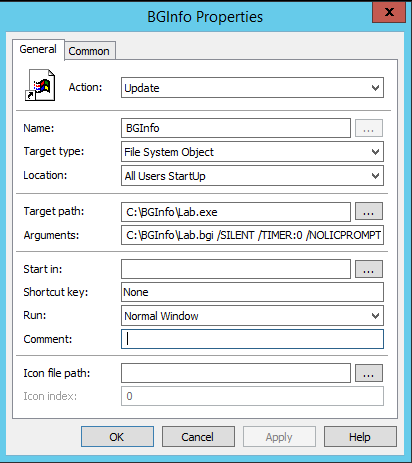
Target path: C:\BGInfo\file.exe
Arguments: C:\BGInfo\file.bgi /SILENT /TIMER:0 /NOLICPROMPT

You want to make sure you pass the arguments along so end users are not constantly prompted when they log in. 

Finally you need to apply the GPO to a test OU and run it on a test machine by doing a gpupdate /force.

The files will download and you can validate that by checking for C:\BGInfo and the .exe and .bgi files. In order for it to work you will need to log out and log back in. It takes a second but it should refresh the desktop with the new image.

More to come!

If you like this blog, give it a g+1

Wednesday, December 19, 2012

AD 2008R2 - Remove Users From Local Admin Using Group Policy

So one of the more frustrating things to deal with as a system admin is managing local user permissions on desktops and servers. People with local admin rights can do just about anything to their local machines which can cause significant headache to the Help Desk team. In 2008R2 Active Directory Microsoft has given administrators the ability manage local system groups via GPO. In this segment I plan to cover some of the highlights of this policy.

Create the GPO:
On your Domain Controller go ahead and open up Group Policy Management. Drill down to the domain where you want to create the policy and expand Group Policy Objects. Right Click in the active window and Select New. Lets call the GPO Local Users. Click OK

Edit the GPO:
You should see the newly created GPO in the active window. Right Click on it ans Select Edit. In the Group Policy Management Editor Drill down to User Configuration > Preferences > Control Panel, then Right Click on Local Users and Groups. Select New > Local Group

In the New Local Group Properties window in Action: select Update. For the Group name: type in Administrators. Select the Remove the current user radio button and Click OK
*Note - In addition to removing the current users you can use this to add users, delete all users and delete all groups. Be careful how you set this up as you may inadvertently remove users or groups you want to keep.

Your newly created element should appear in the active window. Go ahead and close the editor.

Apply & Test the GPO:
Next we need to apply the GPO to the OU that that has the computers which will receive it.

*Caution - You should test all GPO's in a lab environment or on a Test OU BEFORE applying them to the live production environment to ensure you will achieve the desired outcome.

In the navigation tree simply drag the Local Users GPO to the computer group you want it to be applied to. You will be prompted to link the GPO to the OU. Click OK

The final step is to test the GPO. Log into a machine that is in the OU you applied the GPO to and open a command prompt. Run the following:
gpupdate /force
Go into Administrators under Local Users and Groups and you should see the the user has been removed from the group.


More to come!

If you like this blog give it a g+1

Tuesday, December 18, 2012

AD 2008R2 - Setting Local Administrator Password via GPO

When you are managing a large environment, changing the local administrator password on a regular basis can be challenging. There are various tools out there and you can do it with scripting but the easiest way to do it is by using Group Policy. In this segment I am going to walk through the process of setting up the GPO.

Create the GPO:
On your Domain Controller go ahead and open up Group Policy Management. Drill down to the domain where you want to create the policy and expand Group Policy Objects. Right Click in the active window and Select New. Lets call the GPO Local Admin PW. Click OK

Edit the GPO:
You should see the newly created GPO in the active window. Right Click on it and Select Edit. In the Group Policy Management Editor, drill down to Computer Configuration > Preferences > Control Panel Settings > Local Users and Groups. Right Click on Local Users and Groups and Select New > Local User.

For the Action Select Update. In the User name: type Administrator. Type and Confirm the new password you want applied. Uncheck all but Account never expires and Click OK
*Note - This is also a great way to get rid of any local accounts that are out there that are no longer needed. Under Action Select Delete, enter the account name then continue with the steps below.

Back on the Group Policy Management Editor you will see the new Administrator user element has been created in the Active Window. Go ahead and close this and go back to Group Policy Management.

Apply & Test the GPO:
Next we need to apply the GPO to the OU that that has the computers which will receive it.

*Caution - You should test all GPO's in a lab environment or on a Test OU BEFORE applying them to the live production environment to ensure you will achieve the desired outcome.

In the navigation tree simply drag the Local Admin PW GPO to the computer group you want it to be applied to. You will be prompted to link the GPO to the OU. Click OK

The final step is to test the GPO. Log into a machine that is in the OU you applied the GPO to and open a command prompt. Run the following:
gpupdate /force

Log out of the computer and log back in as the Administrator using the new password.


More to come!

If you like this blog give it a g+1

Wednesday, December 12, 2012

AD 2008R2 - GPO for Adding a Security Group to Local Administrators

There are times where you will have a default security group which needs access to all the servers in a particular domain or an organizational unit. In AD 2008R2 you can create a group policy that will automatically deploy this security group to all the servers or computers in a particular group.

Create a Security Group:
The first thing we need is to create a new Security Group to assign to the GPO. In Active Directory Users and Computers Right Click in the organizational unit where you want to create this new security group and Click New and then Group from the flyout. Lets call this group Server Admins. This group should be a Global Security Group.
Once the group is created Double Click on it and go to the Members Tab. Go ahead and add the users that you would like to be in this group and Click OK
 
Create a GPO:
Now that we have our Security Group ready lets create the GPO. Open Group Policy Management and drill down to the domain you would like to create this GPO in and expand Group Policy Objects. In the active window Right Click and select New. Lets call this GPO Local Administrator. Click OK and you should see the new GPO you just created.
 
Modify The GPO:
In the navigation tree Right Click on your newly created GPO and select Edit. In the Group Policy Management Editor drill down to Computer Configuration\Policies\Windows Settings\Security Settings\Restricted Groups. In the active field Right Click and select Add Group. You can Click Browse to locate the security group you just created and Click OK

You will be prompted to apply properties to this group. Under This group is a member of: Click Add and Click Browse. Add Administrators and Remote Desktop Users. Click OK
*Gotcha - If you change Members of this group: you will overwrite the users you added to the group in the Create a Security Group step above.

*Note -The group selection is dynamic. If you add a group called Butterfly, the security group will be added to any server that has a local group called Butterfly

You will see the new security group added to the GPO and the group memberships as well.

Apply & Test the GPO:
Next we need to apply the GPO to the OU that that has the computers which will receive it.

*Caution - You should test all GPO's in a lab environment or on a Test OU BEFORE applying them to the live production environment to ensure you will achieve the desired outcome.

In the navigation tree simply drag the Local Administrator GPO to the computer group you want it to be applied to. You will be prompted to link the GPO to the OU. Click OK

The final step is to test the GPO. Log into a machine that is in the OU you applied the GPO to and open a command prompt. Run the following:
gpupdate /force
Go into Administrators under Local Users and Groups and you should see the newly created Security group.


More to come!

If you like this blog give it a g+1