Showing posts with label GPO 2012 R2. Show all posts

Monday, May 8, 2017

AD 2012 R2 - Deploy BGInfo via Group Policy

So for those of you who have never worked with BGInfo before it is a free product that Microsoft bought a few years back to help identify servers that you are logged into by modifying the desktop image with a customizable file that can pull system info. It can be downloaded from Technet here. Below is a simple example of how I setup mine for my lab.

Nothing fancy but very helpful. So once you have it looking the way you want and have saved your .bgi file, copy it and the .exe file to your SYSVOL (or other shared location). I use SYSVOL because it is shared to all user and computer accounts by default and works very well for this application. 

If you don't know the location of the SYSVOL you can find it locally on your Domain Controller at C:\Windows\SYSVOL\domain\scripts or at \\domain.TLD\sysvol\domain.TLD\scripts\ if you are working remotely.

I created a new folder called BGInfo and copied the files there.

Now we need to open Group Policy Manager and create a new GPO called BGInfo. Edit that file and go to Computer Configuration > Preferences > Windows Settings 

First we need to create the new folder which we will copy the files to. Right Click on Folders and Select New > Folder

Set Action to Update and Path to C:\BGInfo Click OK
\

Now Right Click on Files and Select New > File

In Action Select Update. For Source file use the URL path to your .exe file. In Destination file use C:\BGInfo\file.exe
So Source file(you will need to change the path):
 \\lab.com\sysvol\lab.com\scripts\BGInfo\file.exe
Destination: C:\BGInfo\file.exe

Repeat this step for the .bgi file and you should have something similar to the following
5/22/17 Update - After a good deal of testing in my lab I have determined that because GPP does not update in the same manner as GPO, that you will have issues if you ever try and update the .bgi file with any changes. It will not update those changes on the local machines the way you would expect it to. As a result I added another step in the file copy process. First step is to copy the .exe. Second step is to delete the .bgi file on the local computer. Third step is to download the new file. This will help to distribute changes as they occur.

Final step is to create a shortcut to run the file when a user logs onto the system. Right Click on Shortcuts > New > Shortcut. Set Action to Update, Name it BGInfo, Target Type is File System Object and Location is All Users StartUp.
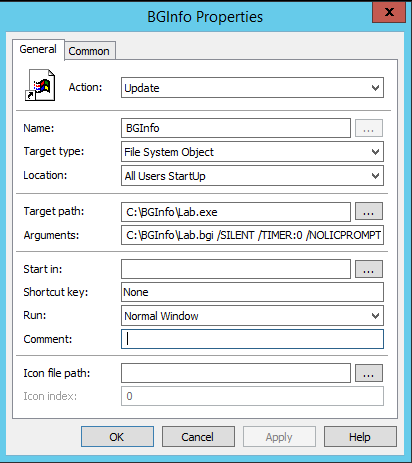
Target path: C:\BGInfo\file.exe
Arguments: C:\BGInfo\file.bgi /SILENT /TIMER:0 /NOLICPROMPT

You want to make sure you pass the arguments along so end users are not constantly prompted when they log in. 

Finally you need to apply the GPO to a test OU and run it on a test machine by doing a gpupdate /force.

The files will download and you can validate that by checking for C:\BGInfo and the .exe and .bgi files. In order for it to work you will need to log out and log back in. It takes a second but it should refresh the desktop with the new image.

More to come!

If you like this blog, give it a g+1

Wednesday, May 18, 2016

AD 2012 R2 - Disable Server Manager on Startup via Group Policy

Is anyone else annoyed with the Server Manager Dashboard opening up every time you log into a server? Me too.You can turn it off on each server manually by going to Manage > Server Manager Properties and Checking Do not start Server Manager automatically at logon:

But that only sets it for your user account and you would have to do it for each server one at a time. Fortunately there is a Group Policy setting for that. Lets go ahead and open Group Policy Management, go to Domains > Your Domain > Right Click on Group Policy Objects and select New. Lets call this one Disable Server Manager on Startup.

Right Click on the newly created GPO and select Edit. Navigate to Computer Configuration > Policies > Administrative Templates > System > Server Manager. Set Do not display Server Manager automatically at logon to Enabled and close the GPO. If you check the settings you should have:

Link the GPO to your servers OU and that's it! Next time you log into your server you won't have to close out of Server Manager.

More to come!

If you like this blog, give it a g+1

Monday, May 16, 2016

AD 2012 R2 - Enable Remote Desktop Connections via Group Policy

Another helpful GPO I use is Enabling Remote Desktop. No matter how many times I add a server to a domain I always seem to forget this setting.

So in Group Policy Management go to Domains > Your Domain > Right Click on Group Policy Objects and select New. In the Name field call it Enable RDP and Click OK. Right Click on the new GPO and select Edit.

There are two areas to modify here. Under Computer > Policies > Administrative > Templates > Windows Components > Remote Desktop Services > Remote Desktop Session Host > Connections. You want to set Allow users to connect remotely by using Remote Desktop Services to Enabled

Then under Security set Require user authentication for remote connections by using Network Level Authentication to Disabled otherwise that checkbox will be checked by default.

So if you check the settings you should have:

Link the GPO to your servers OU and do a GPUpdate /force on the server. If you did it correctly you should see that all three options are greyed out:

More to come!

If you like this blog, give it a g+1

AD 2012 R2 - Disable Windows Firewall Using Group Policy

So after a long hiatus I have decided to start blogging again. I am in the process of rebuilding my entire lab after a crash and I thought it would be good opportunity to start sharing some of my experiences in this process with you. I have several GPOs I use by default in my lab which make things a lot easier when working with different servers. One of which I have already posted. In GPO for Adding a Security Group to Local Administrators I talked about how to modify the Local Administrators group and add users or groups to it automatically. Another one I use is disabling the Windows Firewall via GPO.

This is a fairly straight forward policy. Open Group Policy Management, go to Domains > Your Domain > Right Click on Group Policy Objects and select New. In the Name field call it Disable Windows Firewall and Click OK.

Once you have the GPO created Right Click on it and choose Edit. There are two areas you want to modify. First go to Computer Configuration > Administrative Templates > Network > Network Connections > Windows Firewall > Domain Profile. Set Windows Firewall: Protect all network connections to Disabled

Then go into Standard Profile and do the same thing, set Windows Firewall: Protect all network connections to Disabled

If you check the settings you should have:

Link the GPO to your servers OU and do a GPUpdate /force on the server and you should see that the policy has taken effect:

More to come!

If you like this blog give it a g+1