Apple recently released its latest group of updates for the iPhone5. Update 6.0.2 is primarily a bug fix that effects Wi-Fi service. This update directly relates to the iPhone5 and iPad Mini. It is classified as a minor upgrade and is not needed by other Apple devices. You can find additional information on this update in the Apple Knowledge Base
Installation:
In Settings, under General you will see there is a new Software Update
As always you will need to be connected to a Wi-Fi network to install the update. Download and Install will be greyed out if you are not. Once connected to Wi-FI go ahead and Click Download and Install.
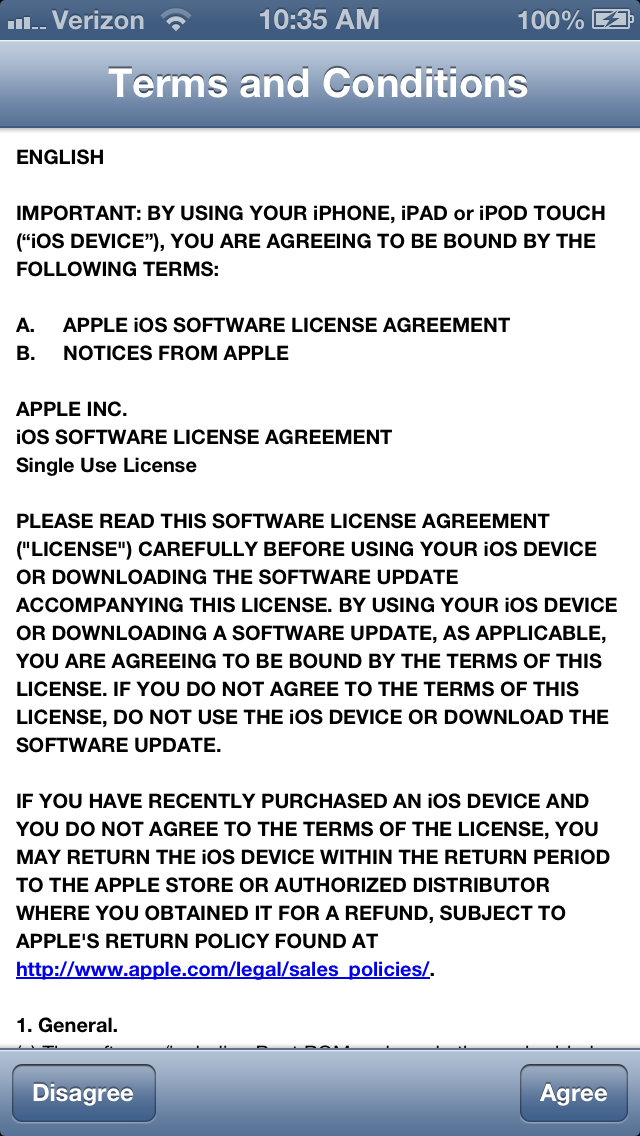
You will be prompted to except the EULA. Click Agree
This is a small update so download and install should only take a few minutes.
Once completed you will see that your new current version is 6.0.2 (10A551).
More to come!
Like this blog, give it a g+1
Showing posts with label Apple. Show all posts
Tuesday, January 8, 2013
Thursday, November 1, 2012
iOS6 - 6.0.1 Update
Apple released its first update to iOS6 this morning. iOS 6.0.1 is intended to be a bug fix correcting a few bugs including an issue with over-the-air software updates that iPhone 5 users were reporting. This fix includes a new "iOS Updater" app to help the process along and is removed after 6.0.1 is installed. This update also includes fixes to Exchange compatibility and was causing meetings to delete.
The full change log:
To install the update:
You need to be connected to a Wi-Fi network to install the update.
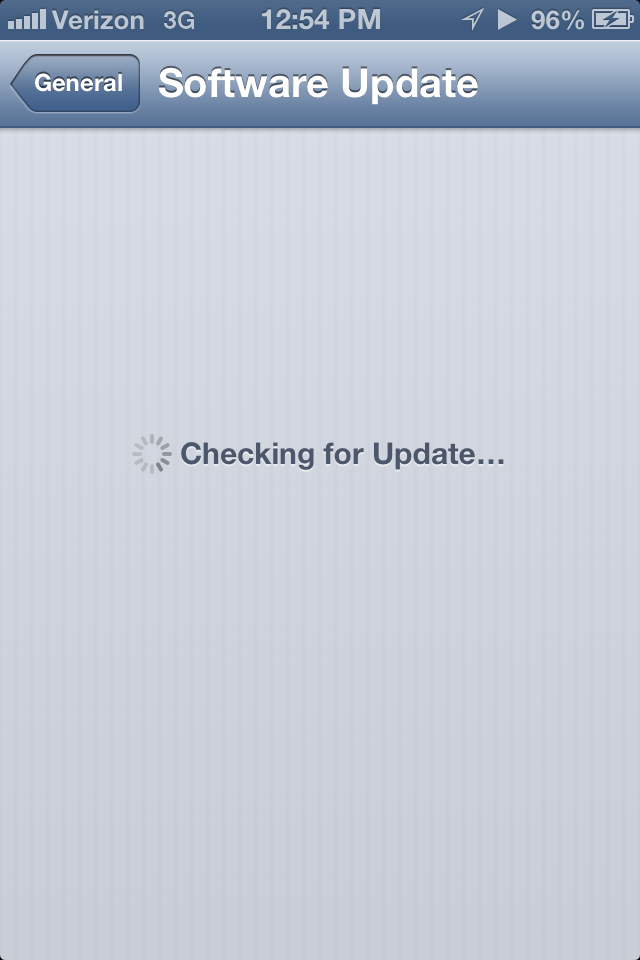
Open Settings then General then Software Update. You will get the Checking for update screen
Your device should find the new update and if you are on a Wi-Fi network the Download and Install button will be active. (iPhone 4S shown)
The download screen for the iPhone5 is slightly different.
Depending on the speed of your network this could take a few minutes to pull down.
Hope this was helpful!
The full change log:
- Fixes a bug that prevents the iPhone 5 from installing software updates wirelessly over the air
- Fixes a bug where horizontal lines may be displayed across the keyboard
- Fixes an issue that could cause the camera to flash to not go off.
- Improves reliablillity of iPhone 5 and iPod Touch (5th Gen) when connected to encrypted WPA2 Wi-Fi networks
- Resolves an issue that prevents iPhone from using the cellular network on some instances
- Consolidated the Use Cellular Data switch for iTunes Match
- Fixes a Passcode loc bug that sometimes allowed access to Passbook pass details from lock screen
- Fixes a bug affecting Exchange meetings
To install the update:
You need to be connected to a Wi-Fi network to install the update.
Open Settings then General then Software Update. You will get the Checking for update screen
Your device should find the new update and if you are on a Wi-Fi network the Download and Install button will be active. (iPhone 4S shown)
The download screen for the iPhone5 is slightly different.
Depending on the speed of your network this could take a few minutes to pull down.
You will proceed with the install and your device will reboot when it is finished. If you go into Settings then General then About you will see under Version that you are on 6.0.1
Hope this was helpful!
Thursday, October 18, 2012
iOS6 - Ad Tracking Re-enabled
So it came to my attention that with the release of the iPhone5 and the new iOS6 Apple has quietly re-enabled its tracking feature to pass your information on to advertisers so they can target you through new tracking technology called IFA.
You will remember that Apple did this back with the release of iOS5 which met with enormous public outcry. Apple rescinded this with the ability for the end user to "opt-out". With the iOS6 release they have done it again but hid the opt-out feature in a place you would not think to look.
How it Works:
The IFA or identifier for advertisers assigns a random number to your Apple device and uses that number like a cookie on your computer. So when you look at an app or browse the web it generates an ad call. The advertiser then takes your IFA and knows you are an iPhone user looking at specific apps or publications and can serve ads targeted to you specifically. For example you are looking at a lot of house websites. The ad server will recognize that you are looking for a house and start serving up house advertisements.
By default this feature is enabled for all iOS6 users and needs to be manually disabled. Fortunately the number is temporary and after the feature is disabled it goes away.
How to Disable Tracking:
So The first part of how they have concealed this is place the feature in General, NOT Privacy as it has been in the past.
Once in General Click About
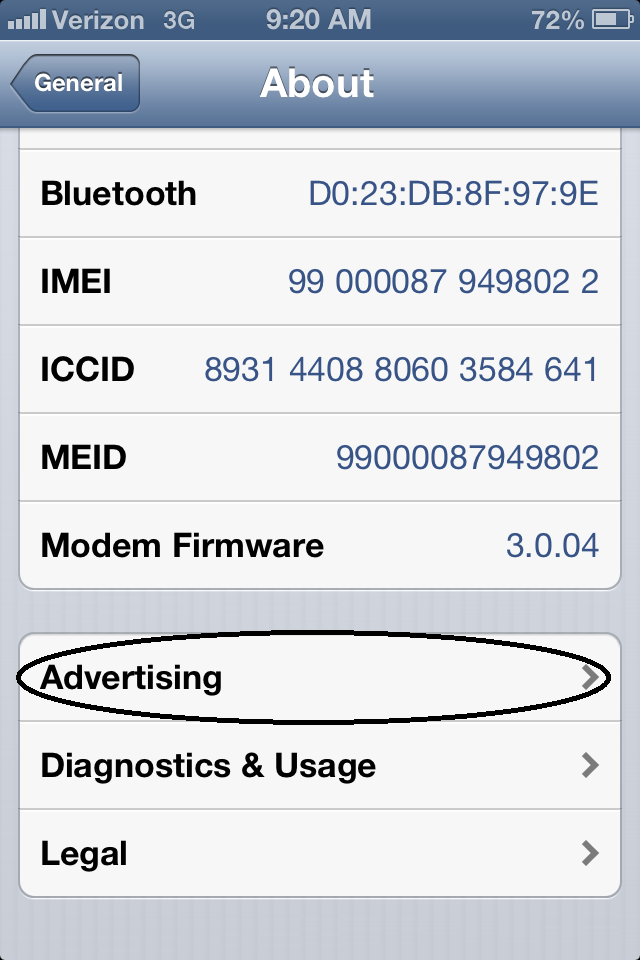
Scroll all the way to the bottom and Click Advertising
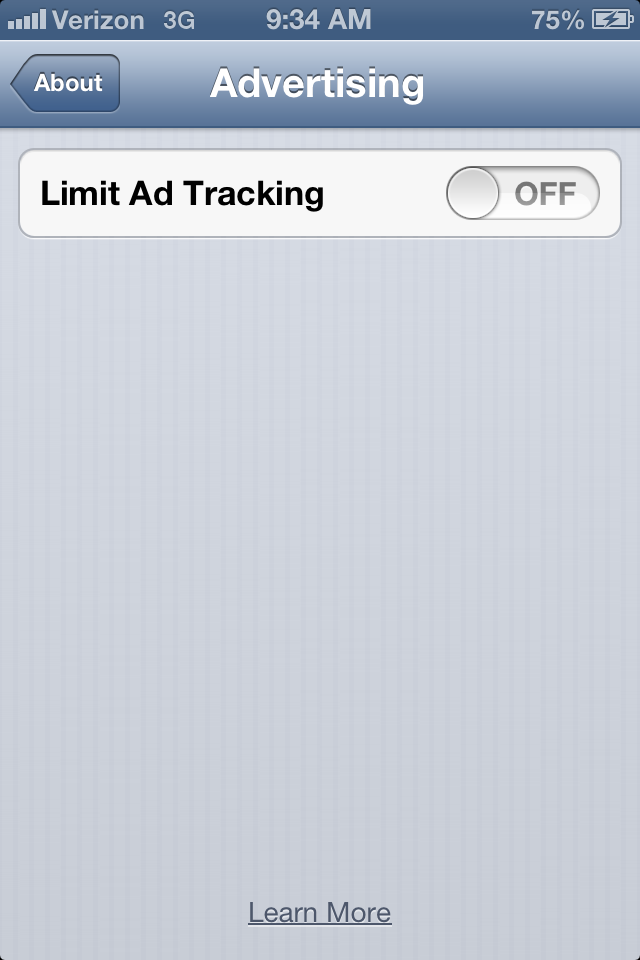
Here is where the second layer of confusion comes in. You look at this and see it is in the Off position and think to yourself that you are good. This is not the case, it needs to be ON to limit ad tracking. Switch it to ON and close out of Settings
The IFA will expire shortly and be gone for good.
You will remember that Apple did this back with the release of iOS5 which met with enormous public outcry. Apple rescinded this with the ability for the end user to "opt-out". With the iOS6 release they have done it again but hid the opt-out feature in a place you would not think to look.
How it Works:
The IFA or identifier for advertisers assigns a random number to your Apple device and uses that number like a cookie on your computer. So when you look at an app or browse the web it generates an ad call. The advertiser then takes your IFA and knows you are an iPhone user looking at specific apps or publications and can serve ads targeted to you specifically. For example you are looking at a lot of house websites. The ad server will recognize that you are looking for a house and start serving up house advertisements.
By default this feature is enabled for all iOS6 users and needs to be manually disabled. Fortunately the number is temporary and after the feature is disabled it goes away.
How to Disable Tracking:
So The first part of how they have concealed this is place the feature in General, NOT Privacy as it has been in the past.
Once in General Click About
Scroll all the way to the bottom and Click Advertising
Here is where the second layer of confusion comes in. You look at this and see it is in the Off position and think to yourself that you are good. This is not the case, it needs to be ON to limit ad tracking. Switch it to ON and close out of Settings
The IFA will expire shortly and be gone for good.
Subscribe to:
Posts (Atom)