So now that we have our discoveries turned on as discussed in SCCM 2012 - How to Enable Discovery we should have some devices discovered. The next thing to do is to install the local SCCM client on these machines. There are a couple different ways to set this up, one being the Client Push Installation (automatic) and the other is a manual push.
Client Push Installation
Lets cover the automatic push first since there are a few settings that need to be done either way. In the Admin space, expand out Overview then Site Configuration then Click Sites. Right Click on your primary site and then Client Installation Settings, then Client Push Installation.
Now we have a few choices here. The first is Enable automatic site-wide client push installation. Essentially, this falls in line with the discovery configured in SCCM 2012 - How to Enable Discovery. Any time a a new machine is discovered, the SCCM agent will automatically be deployed to it. If you enable this setting, then the System Types section becomes active. Here you can define where the agents are automatically deployed, Servers, Workstations and Configuration Manager servers. The final choice is whether or not to install automatically on domain controllers. If you select this option you will need to specify a domain admin account which is able to install on DC's on the Accounts tab.
On the Accounts Tab, if you have chosen to install on domain controllers you need to add a push account with domain admin access. Otherwise you can specify an account with local server / workstation admin access.
On the Installation Properties tab you can leave this as the default or you can add additional switches based on your particular needs. A complete list of command settings can be found on the Microsoft Technet. Click OK
Manual Installation
Now lets go into the Asset and Compliance space and expand out Overview then click on Devices. Depending on the size of your environment you may see a few or you may see several. Right Click on one of your machines that currently does not have an agent and Select Install Client.
The Install Configuration Manager Client Wizard will start, Click Next
If you enabled automatic install on domain controllers as discussed above, the first box will be greyed out. You will want to install a local copy of the agent as it makes it much easier to maintain/repair/upgrade if you do. The third option, Install the client from a specific site may not bee needed depending on how many agents you are deploying. Click Next
You will be prompted to validate your settings, Click Next
The client push was setup successfully.
It may take a few minutes but you will soon see client turn to Yes and see the Client Activity go to Active.
More to come!
If you like this blog, give it a g+1
Tuesday, May 21, 2013
Friday, May 17, 2013
SCCM 2012 - Configuring Boundaries
In SCCM 2012 - How to Enable Discovery we discussed how to enable Discovery. So by now your scans should be complete and you should have a decent picture of what your environment looks like through SCCM. The next thing to setup in SCCM is boundaries.
First its important to understand what a boundary is and why we set them up. Microsoft defines a boundary as a network location on the intranet that can contain one or more devices that you want to manage. Boundaries can be an IP subnet, Active Directory site name, IPv6 Prefix, or an IP address range, and the hierarchy can include any combination of these boundary types.
Each boundary represents a network location in System Center 2012 Configuration Manager, and it is available from every site in your hierarchy. A boundary does not enable you to manage clients at the network location. To manage a client, the boundary must be a member of a boundary group, which is a collection of boundaries. Boundary groups help clients on the internet find their assigned site and locate content available for install such as software, applications and windows updates as well as operating system images.
Configuration Manager does not support the direct entry of a supernet as a boundary. Instead, use the IP address range boundary type. When Active Directory Forest Discovery identifies a supernet that is assigned to an Active Directory site, Configuration Manager converts the supernet into an IP address range boundary.
A few things have changed relating to boundaries since SCCM 2007:
So lets go ahead and take a look at boundaries. In the Admin space expand Hierarchy Configuration and Click Boundaries. Now you will remember when we did the Active Directory Forest Discovery we told it to automatically create site boundaries so you should see at least one already made for you. In a production environment you could potentially see several which is a good thing because you did not have to create them manually.
And there it is.
So Right Click on Default-First-Site-Name and Select Properties then go to the Boundary Groups tab you will see that this Boundary is not a member of any groups.
Now in order to make this existing boundary usable it needs to be added to a boundary group, and in order to do that we will need to create our first boundary group.
In the navigation tree, Click Boundary Groups then Click Create Boundary Group
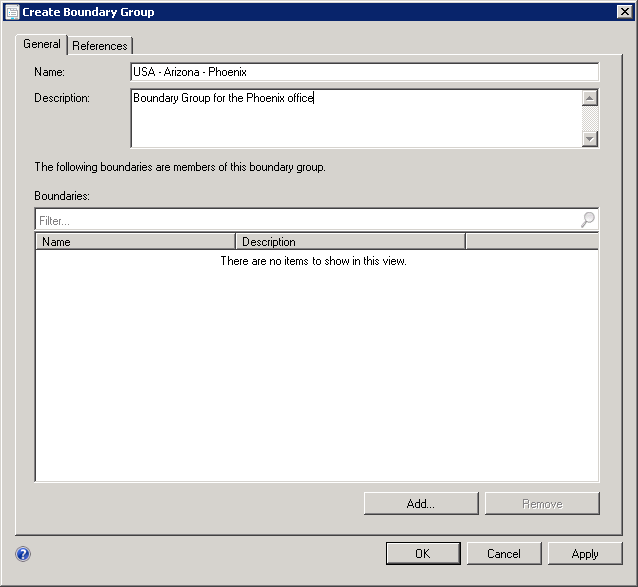
The Create Boundary Group wizard will open. Now to help you out later I would think geographically when designing your boundary groups. For instance I used USA - Arizona - Phoenix in the example here to define a boundary group for the Phoenix office. You could use other countries, states and cities to define your groups as well and this will help you visualize the distinction between them as the hierarchy expands out. Click Add
You will see our Default-First-Site-Name is available (as well as any others that may have been discovered), go ahead and check it and Click OK
Click on the References tab. If you are setting up Site specific boundary groups as discussed earlier then you will want to check the Use this boundary group for site assignment and enter the site server you are assigning the group to. In our case we only have one site server so we use 001-Lab Site.
You also want to associate the Content location to the boundary group so Clients know which distribution point and which state migration point to connect to. You can assign multiple servers in Content location. Click Add and select the server(s) that are applicable in your situation. Click OK
Click OK
You will see your newly created boundary group updated on the list.
To verify the boundary settings go back into Boundaries and pull up the properties of Default-First-Site-Name. If you look under the Boundary Groups tab you should see the boundary group assigned similar to this.
More to come!
If you like this blog, give it a g+1
Contributing documentation:
Technet,
First its important to understand what a boundary is and why we set them up. Microsoft defines a boundary as a network location on the intranet that can contain one or more devices that you want to manage. Boundaries can be an IP subnet, Active Directory site name, IPv6 Prefix, or an IP address range, and the hierarchy can include any combination of these boundary types.
Each boundary represents a network location in System Center 2012 Configuration Manager, and it is available from every site in your hierarchy. A boundary does not enable you to manage clients at the network location. To manage a client, the boundary must be a member of a boundary group, which is a collection of boundaries. Boundary groups help clients on the internet find their assigned site and locate content available for install such as software, applications and windows updates as well as operating system images.
Configuration Manager does not support the direct entry of a supernet as a boundary. Instead, use the IP address range boundary type. When Active Directory Forest Discovery identifies a supernet that is assigned to an Active Directory site, Configuration Manager converts the supernet into an IP address range boundary.
A few things have changed relating to boundaries since SCCM 2007:
- Boundaries are no longer site specific, but defined once for the hierarchy, and they are available at all sites in the hierarchy.
- Each boundary must be a member of a boundary group before a device on that boundary can identify an assigned site, or a content server such as a distribution point.
- You no longer configure the network connection speed of each boundary. Instead, in a boundary group you specify the network connection speed for each site system server associated to the boundary group as a content location server.
So lets go ahead and take a look at boundaries. In the Admin space expand Hierarchy Configuration and Click Boundaries. Now you will remember when we did the Active Directory Forest Discovery we told it to automatically create site boundaries so you should see at least one already made for you. In a production environment you could potentially see several which is a good thing because you did not have to create them manually.
So Right Click on Default-First-Site-Name and Select Properties then go to the Boundary Groups tab you will see that this Boundary is not a member of any groups.
Now in order to make this existing boundary usable it needs to be added to a boundary group, and in order to do that we will need to create our first boundary group.
In the navigation tree, Click Boundary Groups then Click Create Boundary Group
The Create Boundary Group wizard will open. Now to help you out later I would think geographically when designing your boundary groups. For instance I used USA - Arizona - Phoenix in the example here to define a boundary group for the Phoenix office. You could use other countries, states and cities to define your groups as well and this will help you visualize the distinction between them as the hierarchy expands out. Click Add
You will see our Default-First-Site-Name is available (as well as any others that may have been discovered), go ahead and check it and Click OK
Click on the References tab. If you are setting up Site specific boundary groups as discussed earlier then you will want to check the Use this boundary group for site assignment and enter the site server you are assigning the group to. In our case we only have one site server so we use 001-Lab Site.
You also want to associate the Content location to the boundary group so Clients know which distribution point and which state migration point to connect to. You can assign multiple servers in Content location. Click Add and select the server(s) that are applicable in your situation. Click OK
Click OK
You will see your newly created boundary group updated on the list.
To verify the boundary settings go back into Boundaries and pull up the properties of Default-First-Site-Name. If you look under the Boundary Groups tab you should see the boundary group assigned similar to this.
More to come!
If you like this blog, give it a g+1
Contributing documentation:
Technet,
Thursday, May 16, 2013
SCCM 2012 - How to Enable Discovery
Now that we have SCCM installed its time to start having it do some work for us. The first thing to do is to turn on discoveries and have it go out and query Active Directory to see what computers and users it can manage in the environment. There are several different types of discoveries that can be utilized.
Types of Discoveries:
Active Directory Forest Discovery
The Active Directory Forest discovery can discover sites and subnets and create Configuration Manager boundaries for them. This discovery method allows you to automatically create the Active Directory or IP subnet boundaries that are within the discovered Active Directory Forests. It supports a user-defined account as the discovery resource in each forest and can publish to the Active Directory Domain Service of a forest if publishing is enabled and the account has permissions.
Active Directory Group Discovery
The Active Directory Group discovery has the ability to discover groups from a defined location in Active Directory. This discovery includes local, global and universal security groups and the membership within these groups. With this discovery you also have the ability to discover computers that have logged on to the domain in any given period of time. Distribution groups are not discovered as group resources.
Active Directory System Discovery
Active Directory System discovery gives you the ability to discover computers in a specific location within Active Directory Domain Services. Computer discovery is required in order to push the SCCM client out to computers. You can also configure discovery for computers that have logged into the domain in a specific period of time to prevent discovery of machine accounts that are obsolete.
Active Directory User Discovery
The Active Directory User discovery is just that, it lets you discover users in specific containers within AD. This discovery comes with some solid filtering options when discovering user accounts such as attributes, child containers and groups.
Network Discovery
Network discovery searches your network infrastructure for network devices that have an IP address and can discovery devices that might be found by other discovery methods including printers, routers and bridges.
Enabling Discovery:
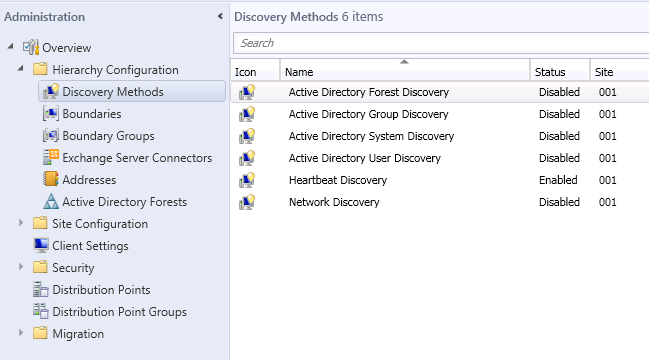
Now that we have a little better understanding of the different types of discoveries lets go ahead and turn them on. In the Admin space, expand Hierarchy Configuration and Select Discovery Methods.
You will see all of the discoveries discussed earlier. You will also notice that all of them are disabled by default except for Heartbeat discovery.
Where to Run Discoveries:
This is the time to consider where you intend to run discoveries. Once an object is discovered its information is disseminated within the SCCM hierarchy automatically so it may not make sense to have multiple sites querying the same information. You can, however have multiple discoveries running on alternating schedules, if items in your environment change frequently. Just be sure to not have them running simultaneously as this can cause network latency and create duplicate records in the database. Plan each discovery schedule carefully so they do not overlap. Other things to consider when setting up discoveries are running the discovery from a location which has a fast network connection to the domain controller. Also take into account the Active Directory topology as well to ensure you are discovering the most current information.
Since we are running this in a lab with only one site and one DC this is not a huge issue but for you it may be.
Active Directory Forest Discovery
Active Directory Forest discovery is one I would consider running at the top of your hierarchy. If you have built a CAS server and it is in good network proximity to the Domain Controller, I would run it on the CAS. So lets go ahead and enable Forest discovery. Right Click on Active Directory Forest Discovery and Select Properties. The Forest Discovery Properties windows will open. Check the box for Enable Active Directory Forest Discovery to enable the discovery. Then Check Automatically create Active Directory Site boundaries when they are discovered and Automatically create IP address range boundaries for IP subnets when they are discovered. For now leave the discovery schedule set to 1 Week. Click OK
You will be prompted to run the discovery as soon as possible. Click Yes
Now that we have Forest discovery enabled we want to make sure that publishing is enabled so we can write back the following information to Active Directory (assuming you extended the Active Directory Schema):
Active Directory Group Discovery
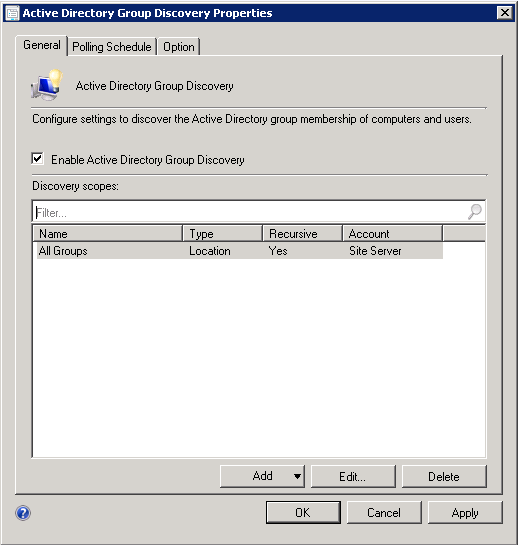
Now lets move on to Group discovery. Back in Discovery Methods Right Click on Group Discovery and Select Properties. In the Active Directory Group Discovery Properties window Check Enable Active Directory Group Discovery. Now there are two ways to discover groups, individually by group, and by location. The latter is much easier in my opinion as it gives you the ability to query the entire domain instead of calling out individual containers. Click Add then Select Location...
For the Location you will be asked for a Name and Location. I called it All Groups. Then Click Browse
The easiest way is just to select the top level domain. The query will then go through all the containers to do a discovery. Click OK
Verify the LDAP information has been populated. Click OK
You will see your newly added group discovery. Click on the Polling Schedule tab.
Here you can define exactly how often it does a full scan. You can also chose to have a delta discovery run (recommended). Click Schedule
In the Custom Schedule pane you can define exactly when you want the full scan to run. Adjust the time to fit your needs and Click OK
Click on the Option Tab. From here you can define how far back to go to scan for computers and how recently they have updated their passwords. I enable all three options and set the length to 90 days. Click OK
You will be prompted to run a full scan as soon as possible. Click Yes
Active Directory System Discovery
Now lets enable the System discovery. Right Click on Active Directory System Discovery and select Properties. Check the box to enable discovery and Click on the Orange Star
Same as before Click Browse and select the container you want to run discovery on. Repeat the process for multiple containers. You can select the top level of the domain as we did before but if you have a lot of computers in your environment this can cause high bandwidth utilization so you might want to run the initial scan and all scheduled scans in off peak hours. Click OK
As before adjust polling schedule to suit your environmental needs. Click on the Active Directory Attributes tab. You can see that quite a few attributes are selected by default, but you can add even more as needed. I have chosen to add badPasswordTime and badPwdCount as well. Click on the Option tab
Again Check both option boxes and set the interval to 90 days. Click OK
You will be prompted to run the initial scan as soon as possible. Click OK
Active Directory User Discovery
User discovery is very similar to System discovery. Right click on Active Directory User Discovery and select Properties. Check the box to enable discovery and Click on the Orange Star. As in System discovery select the containers you wish to scan and Click OK.
On the Polling Schedule you can define when the Scan will run.
In Active Directory Attributes you can add any additional user attributes to scan. Click OK.
You will be prompted to run the scan as soon as possible. Click OK
More to come!
If you like this blog, give it a g+1
Contributing documentation:
Technet
Types of Discoveries:
Active Directory Forest Discovery
The Active Directory Forest discovery can discover sites and subnets and create Configuration Manager boundaries for them. This discovery method allows you to automatically create the Active Directory or IP subnet boundaries that are within the discovered Active Directory Forests. It supports a user-defined account as the discovery resource in each forest and can publish to the Active Directory Domain Service of a forest if publishing is enabled and the account has permissions.
Active Directory Group Discovery
The Active Directory Group discovery has the ability to discover groups from a defined location in Active Directory. This discovery includes local, global and universal security groups and the membership within these groups. With this discovery you also have the ability to discover computers that have logged on to the domain in any given period of time. Distribution groups are not discovered as group resources.
Active Directory System Discovery
Active Directory System discovery gives you the ability to discover computers in a specific location within Active Directory Domain Services. Computer discovery is required in order to push the SCCM client out to computers. You can also configure discovery for computers that have logged into the domain in a specific period of time to prevent discovery of machine accounts that are obsolete.
Active Directory User Discovery
The Active Directory User discovery is just that, it lets you discover users in specific containers within AD. This discovery comes with some solid filtering options when discovering user accounts such as attributes, child containers and groups.
Network Discovery
Network discovery searches your network infrastructure for network devices that have an IP address and can discovery devices that might be found by other discovery methods including printers, routers and bridges.
Enabling Discovery:
Now that we have a little better understanding of the different types of discoveries lets go ahead and turn them on. In the Admin space, expand Hierarchy Configuration and Select Discovery Methods.
You will see all of the discoveries discussed earlier. You will also notice that all of them are disabled by default except for Heartbeat discovery.
Where to Run Discoveries:
This is the time to consider where you intend to run discoveries. Once an object is discovered its information is disseminated within the SCCM hierarchy automatically so it may not make sense to have multiple sites querying the same information. You can, however have multiple discoveries running on alternating schedules, if items in your environment change frequently. Just be sure to not have them running simultaneously as this can cause network latency and create duplicate records in the database. Plan each discovery schedule carefully so they do not overlap. Other things to consider when setting up discoveries are running the discovery from a location which has a fast network connection to the domain controller. Also take into account the Active Directory topology as well to ensure you are discovering the most current information.
Since we are running this in a lab with only one site and one DC this is not a huge issue but for you it may be.
Active Directory Forest Discovery
Active Directory Forest discovery is one I would consider running at the top of your hierarchy. If you have built a CAS server and it is in good network proximity to the Domain Controller, I would run it on the CAS. So lets go ahead and enable Forest discovery. Right Click on Active Directory Forest Discovery and Select Properties. The Forest Discovery Properties windows will open. Check the box for Enable Active Directory Forest Discovery to enable the discovery. Then Check Automatically create Active Directory Site boundaries when they are discovered and Automatically create IP address range boundaries for IP subnets when they are discovered. For now leave the discovery schedule set to 1 Week. Click OK
You will be prompted to run the discovery as soon as possible. Click Yes
Now that we have Forest discovery enabled we want to make sure that publishing is enabled so we can write back the following information to Active Directory (assuming you extended the Active Directory Schema):
- SMS-Site-<site code>
- SMS-MP-<site code>-<site system server name>
- SMS-SLP-<site code>-<site system server name>
- SMS-<site code>-<Active Directory site name or subnet>
Active Directory Group Discovery
Now lets move on to Group discovery. Back in Discovery Methods Right Click on Group Discovery and Select Properties. In the Active Directory Group Discovery Properties window Check Enable Active Directory Group Discovery. Now there are two ways to discover groups, individually by group, and by location. The latter is much easier in my opinion as it gives you the ability to query the entire domain instead of calling out individual containers. Click Add then Select Location...
For the Location you will be asked for a Name and Location. I called it All Groups. Then Click Browse
The easiest way is just to select the top level domain. The query will then go through all the containers to do a discovery. Click OK
Verify the LDAP information has been populated. Click OK
You will see your newly added group discovery. Click on the Polling Schedule tab.
Here you can define exactly how often it does a full scan. You can also chose to have a delta discovery run (recommended). Click Schedule
In the Custom Schedule pane you can define exactly when you want the full scan to run. Adjust the time to fit your needs and Click OK
Click on the Option Tab. From here you can define how far back to go to scan for computers and how recently they have updated their passwords. I enable all three options and set the length to 90 days. Click OK
You will be prompted to run a full scan as soon as possible. Click Yes
Active Directory System Discovery
Now lets enable the System discovery. Right Click on Active Directory System Discovery and select Properties. Check the box to enable discovery and Click on the Orange Star
Same as before Click Browse and select the container you want to run discovery on. Repeat the process for multiple containers. You can select the top level of the domain as we did before but if you have a lot of computers in your environment this can cause high bandwidth utilization so you might want to run the initial scan and all scheduled scans in off peak hours. Click OK
As before adjust polling schedule to suit your environmental needs. Click on the Active Directory Attributes tab. You can see that quite a few attributes are selected by default, but you can add even more as needed. I have chosen to add badPasswordTime and badPwdCount as well. Click on the Option tab
Again Check both option boxes and set the interval to 90 days. Click OK
You will be prompted to run the initial scan as soon as possible. Click OK
Active Directory User Discovery
User discovery is very similar to System discovery. Right click on Active Directory User Discovery and select Properties. Check the box to enable discovery and Click on the Orange Star. As in System discovery select the containers you wish to scan and Click OK.
On the Polling Schedule you can define when the Scan will run.
In Active Directory Attributes you can add any additional user attributes to scan. Click OK.
You will be prompted to run the scan as soon as possible. Click OK
More to come!
If you like this blog, give it a g+1
Contributing documentation:
Technet
Wednesday, May 15, 2013
SCCM 2012 - Installation (Part 2 - Install)
UPDATE 5/26/16 - This post has been superseded by SCCM 1511 - Installation. Please see this post for your SCCM Install.
In SCCM 2012 - Installation (Part 1 - Prerequisites) we covered the basics for getting your environment and the SCCM server ready for the SCCM install. If you followed those steps the installation should go very smooth and will take you about an hour to complete.
So before we begin make sure the SCCM Admin account has local administrator rights on the SCCM server and log in as that user. Go ahead and run the splash.html file in the install directory. You will be greeted with the System Center 2012 Configuration Manager welcome screen. Click Install
Click Next
On the Available Setup Options scree you are given a few choices. At this point it is prudent to discuss our install options. To do so I will need to talk a little about what the differences are between the sites. Your choices are Central Administration Site (CAS), Primary Site, and Secondary Site.
Central Administration Site (CAS):
The Central Administration or CAS site is responsible for coordinating replication, discovery and client administration throughout your SCCM infrastructure.
Points of interest for a CAS:
Primary Site:
The primary site is used when your environment does not exceed 100,000 clients (SQL Enterprise on remote server) or 50,000 clients (SQL Standard locally or on remote server). It is also recommended for managing clients on networks with adequate bandwidth. Other things of note about Primary Sites, they cannot be nested under other Primary Sites and are not used as a boundary for client settings and security but do participate in SQL replication.
Secondary Site:
The Secondary Site is used in remote locations where network bandwidth is a factor. They can be nested under Primary Sites but cannot be stand alone. Management Point and Distribution Point are automatically installed during installation. They also participate in SQL replication.
If you are installing in a lab environment you can use the Use typical installation option and it will configure and install all requirements to the default setting. For this segment we will be using the Advanced install to elaborate on the different settings available during the install. Select Install a Configuration Manager primary site and Click Next
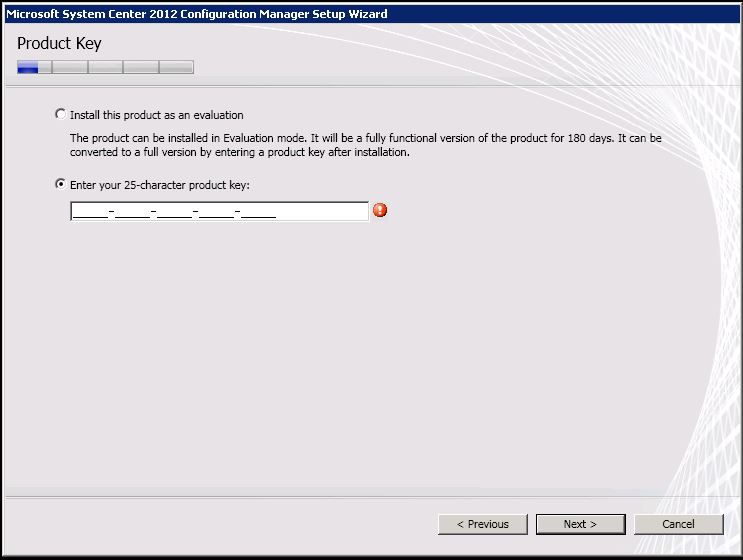
You can enter your product key if you have one or you can install as an evaluation copy. Click Next
Accept the EULA and Click Next
This is a weird throwback from previous versions. Its nice if you are building this in a lab because it will download and instal SQL Server Express and the other requirements needed for a stand alone server, but it does not give you the option to opt out if you are installing with a remote SQL instance. You will be given the choice to select a remote database instance in a later step. Go ahead and accept the EULA for each of the three options and Click Next
You will be prompted for a download location. Enter one in and Click Next
Choose all applicable languages and Click Next
You will be asked to provide a Site code, a Site name and the install directory. I choose the default for the install directory, I also chose to install the Configuration Manager console. Click Next
Since this is the first server built in the environment we will be selecting Install the primary site as a stand alone site. Click Next
You will be prompted to confirm your decision. Click Yes
Here is where you can define the SQL server where your database instance resides. Enter the required information and Click Next
Since this is the first server in the hierarchy we will be using the FQDN of this machine. Click Next
If you are communicating with a lot of remote clients it might be prudent to use the HTTPS option but you will be required to provide a certificate for authentication. For the purposes of this install we are going to select Configure the communications method on each site system role and Click Next
A Management point and a Distribution point are required on the first Primary site. Use the FQDN of this machine and Click Next
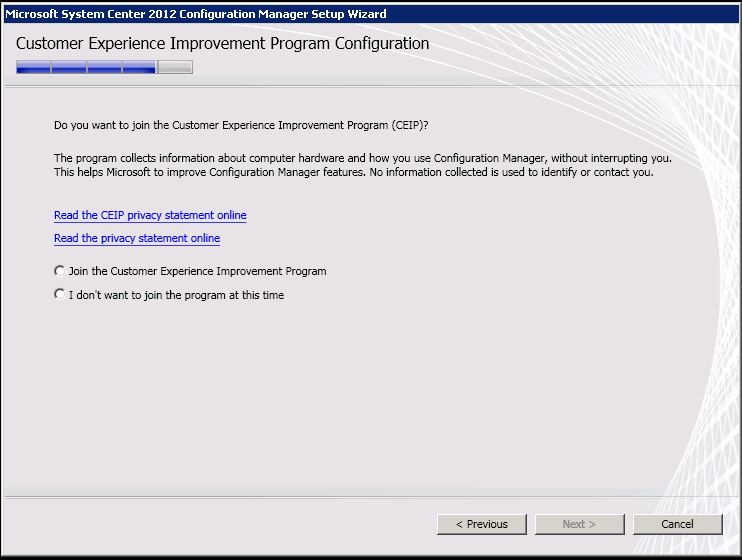
I generally opt out but the choice is yours. Click Next
Review the install summary and Click Next
If you followed all the steps in SCCM 2012 - Installation (Part 1 - Prerequisites) the prerequisite checker should come up clean. Click Begin Install
The install took about forty minutes in my case but can vary depending on the speed of your server.
Click Close and you are all set!
More to come!
If you like this blog give it a g+1
In SCCM 2012 - Installation (Part 1 - Prerequisites) we covered the basics for getting your environment and the SCCM server ready for the SCCM install. If you followed those steps the installation should go very smooth and will take you about an hour to complete.
So before we begin make sure the SCCM Admin account has local administrator rights on the SCCM server and log in as that user. Go ahead and run the splash.html file in the install directory. You will be greeted with the System Center 2012 Configuration Manager welcome screen. Click Install
Click Next
On the Available Setup Options scree you are given a few choices. At this point it is prudent to discuss our install options. To do so I will need to talk a little about what the differences are between the sites. Your choices are Central Administration Site (CAS), Primary Site, and Secondary Site.
Central Administration Site (CAS):
The Central Administration or CAS site is responsible for coordinating replication, discovery and client administration throughout your SCCM infrastructure.
Points of interest for a CAS:
- Supports up to 25 primary child sites
- Is required if your infrastructure exceeds 100,000 clients (the limit for a Primary Site)
- If you are using SQL Server Enterprise you can support up to 400,000 clients
- If you are using SQL Server Standard you can support up to 50,000 clients
- Microsoft recommends a beefy server to support CAS. 64GB server with 16 Cores
- The CAS server is also the content library which means every software package, windows update and application is stored on the server so additional storage space is needed.
Primary Site:
The primary site is used when your environment does not exceed 100,000 clients (SQL Enterprise on remote server) or 50,000 clients (SQL Standard locally or on remote server). It is also recommended for managing clients on networks with adequate bandwidth. Other things of note about Primary Sites, they cannot be nested under other Primary Sites and are not used as a boundary for client settings and security but do participate in SQL replication.
Secondary Site:
The Secondary Site is used in remote locations where network bandwidth is a factor. They can be nested under Primary Sites but cannot be stand alone. Management Point and Distribution Point are automatically installed during installation. They also participate in SQL replication.
If you are installing in a lab environment you can use the Use typical installation option and it will configure and install all requirements to the default setting. For this segment we will be using the Advanced install to elaborate on the different settings available during the install. Select Install a Configuration Manager primary site and Click Next
You can enter your product key if you have one or you can install as an evaluation copy. Click Next
Accept the EULA and Click Next
This is a weird throwback from previous versions. Its nice if you are building this in a lab because it will download and instal SQL Server Express and the other requirements needed for a stand alone server, but it does not give you the option to opt out if you are installing with a remote SQL instance. You will be given the choice to select a remote database instance in a later step. Go ahead and accept the EULA for each of the three options and Click Next
You will be prompted for a download location. Enter one in and Click Next
Choose all applicable languages and Click Next
You will be asked to provide a Site code, a Site name and the install directory. I choose the default for the install directory, I also chose to install the Configuration Manager console. Click Next
Since this is the first server built in the environment we will be selecting Install the primary site as a stand alone site. Click Next
You will be prompted to confirm your decision. Click Yes
Here is where you can define the SQL server where your database instance resides. Enter the required information and Click Next
Since this is the first server in the hierarchy we will be using the FQDN of this machine. Click Next
If you are communicating with a lot of remote clients it might be prudent to use the HTTPS option but you will be required to provide a certificate for authentication. For the purposes of this install we are going to select Configure the communications method on each site system role and Click Next
A Management point and a Distribution point are required on the first Primary site. Use the FQDN of this machine and Click Next
I generally opt out but the choice is yours. Click Next
Review the install summary and Click Next
If you followed all the steps in SCCM 2012 - Installation (Part 1 - Prerequisites) the prerequisite checker should come up clean. Click Begin Install
The install took about forty minutes in my case but can vary depending on the speed of your server.
Click Close and you are all set!
More to come!
If you like this blog give it a g+1
Subscribe to:
Posts (Atom)