Wednesday, May 15, 2013

SCCM 2012 - Installation (Part 1 - Prerequisites)

UPDATE 5/26/16 - This post has been superseded by SCCM 1511 - Installation. Please see this post for your SCCM Install.

I have been spending a lot of time over the last year writing about SCOM and all of the fun things it can do. Someone asked me the other day if I was going to write anything about the other members of the System Center Suite. I had always planned to do so but I just haven't gotten to it. That being said, I want to expand out my segments to other areas of the System Center Suite, starting with Configuration Manager.

The installation for Configuration Manager is considerably more complex than SCOM, specially with getting the server and environment prepared to receive SCCM and allow it to function properly. As such I plan to cover this in two parts. This segment will be dedicated to getting everything prepared with Active Directory, Group Policy, SQL, WSUS and the requirements on the actual server to complete the install. In part 2 I will go through the steps to do the installation.

Hardware Requirements:
  • Disk space: %SYSTEMDRIVE% requires at least 10 GB free hard disk space, and 50 GB total
  • Processor: AMD Opteron, AMD Athlon 64, Intel Xeon with Intel EM64T support, Intel Pentium IV with EM64T support - Minimum: 1.4 GHz
  • 2GB of memory minimum, 4GB recommended (it will install with less than 2GB but it will run like crap)

Operating System Requirements: 
SCCM 2012 needs to be installed on at least Windows Server 2008 R2 SP1

Active Directory:
Service Accounts
Generally I use two service accounts when installing SCCM, a SCCM Admin account and a Domain Join account. The admin account will be used to do the installation as well as have permissions in AD and in SQL. The domain join account does just that, it will be used to add computers to the domain when created. The domain join account is not needed for the actual installation but it's more efficient to create them both at the same time.

Create the Systems Management container:
Note: The following actions will need to be performed by someone with Domain Administrator level access in Active Directory.
On a Domain Controller open ADSI Edit. If you are not connected to a DC by default then Right Click on ADSI Edit and Select Connect to... Click OK

Once you are connected, expand out Default naming Context, then expand the DC=. Right Click on CN=System and Select New > Object.

From the Class selection choose Container and Click Next.

Enter System Management as the value and Click Next then Click Finish.

Click Finish

Delegate control to the System Management Container:
Open Active Directory Users and Computers. In View make sure Advanced Features is checked. Expand out the domain, then expand System. You should see the newly created System Management folder. Right Click on the folder and Select Delegate Control...

The Delegation of Control Wizard will open, Click Next
 

On the Users or Groups window Click Add

In the Select Users, Computers or Groups window, Click Object Types

In Object Types make sure Computers is Selected and Click OK.

Enter the name of the SCCM computer and the SCCM Admin account, Click Check names to verify they are valid and Click OK

You will see the two accounts added. Click Next

In the Tasks to Delegate window select the Create a custom task to delegate radio button and Click Next

Select This folder, existing objects in the folder, and creation of new objects in this folder and Click Next

Select General, Property-specific, Creation/Delegation of specific child objects and Full Control.  Click Next

Click Finish

Extend the Active Directory Schema:
Note: The following action will need to be performed by someone with Schema Administrator level access in Active Directory.

Active Directory schema extension is not required at the time of installation, and can be done post install but you will get warning notifications during the install process if you do not. The benefits for doing the extension outweigh any reasons not to in my opinion so I usually recommend doing the extension before. For additional information regarding schema extensions refer to Technet. If you have already run the schema extensions for SCCM 2007 it is not necessary to run them again.

In the SCCM install directory under SMSSETUP\BIN\X64 you will find extadsch.exe. Run this from an elevated command prompt.

To verify the install was successful you can review the execution log, c:\ExtADSch.txt. You are looking for Successfully extended the Active Directory schema.

Group Policy:
Open SQL Replication Ports
Note: The following actions will need to be performed by someone with Domain Administrator level access in Active Directory.

On a Domain Controller open Group Policy Management. Expand out the forest and domain. Right Click on the Domain and Click Create a GPO in this domain, and link it here... 

 Call the new GPO SCCM Policy and Click OK

Once the policy is created Right Click on it and select Edit

Drill down to Computer Configuration > Policies > Windows Settings > Security Settings > Windows Firewall with Advanced Security and select Inbound Rules. In the open window, Right Click and select New Rule

Select Port and Click Next

Select TCP and enter port 1433 as the specific Port. Click Next

Allow the connection and Click Next

Since I am building this in a lab I am not overly concerned with security I left this open for all profiles. You may want to lock this down to Domain and Private in your environment depending on your specific circumstances. Click Next

Give it a name and Click Finish.

Repeat the previous steps for TCP Port 4022 as well.

File and Printer Sharing:
While still in the GPO Right Click in the window and Click New Rule. Select Predefined and choose File and Printer Sharing from the drop down menu. Click Next

Select all rules (if not already selected) Click Next

Select Allow the Connection and Click Finish
Repeat the previous steps for an outbound rule as well.

Windows Management Instrumentation (WMI):
While still in the GPO Right Click in the window and Click New Rule. Select Predefined and choose Windows Management Instrumentation from the drop down menu. Click Next

Select all Rules and Click Next

Select Allow the connection and Click Finish


Additional Local Installs:
There are a few installs that are required on the SCCM server before you are ready to do the final installation.
  • .NET 3.5
  • .NET 4.0
  • Background Intelligent Transfer Service (BITS)
  • IIS6 WMI Compatibility
  • Remote Differential Compression (RDC)
  • Windows Server Update Service (WSUS)
For .NET 3.5
Open Server Manager
Click on Features
Click Add Features
Check the box for .NET Framework 3.5.1 Features
     You will be prompted to install: 
     Web Server (IIS) and Windows Process Activation Service
     Click Add Required Role Services to continue
     On Web Server (IIS) Click Next
     On Select Role Services Click Next
     On Confirm Installation Selections Click Next 

For .NET 4.0
If you don't already have a copy of .NET 4.0 you can get it from Microsoft.

Run the .NET 4.0 executable
Check I have read and accept the license terms
Click Install (this will take a few minutes depending on the specs of the box)
Click Finish

For BITS
Open Server Manager
Click on Features
Click Add Features
Check the box for Background Intelligent Transfer Service (BITS)
     You will be prompted to install: 
     Web Server (IIS) Management Tools and Remote Server Administration Tools
     Click Add Required Role Services to continue
     On Web Server (IIS) Click Next
     On Select Role Services Click Next
     On Confirm Installation Selections Click Next

For IIS6 WMI compatibility
After BITS is installed you will need to add one additional sub-feature to IIS, the IIS6 WMI Compatibility.
In Service Manager
Click Roles
Click Web Server (IIS) under Roles Summary
Scroll down to Role Services and Click Add Role Service
Scroll down and expand Management Tools, then expand out IIS 6 Managment Compatibility
Check the box for IIS 6 WMI Compatibility
Click Install

For Remote Differential Compression (RDC)
Open Server Manager
Click on Features
Click Add Features
Check the box for Remote Differential Compression (RDC)
Click Next
Click Install

For WSUS
There are a couple different ways to handle WSUS. Now assuming you have a fairly mature environment you probably have a WSUS server out there already. If this is the case you will only need to install the Management Console locally on the SCCM server. You can do this from the WSUS install which you can get from Microsoft. If you do not have WSUS in your enterprise it will need to be setup. For more details on how to install WSUS refer to Windows 2008R2 - WSUS Installation. You can install this on the SCCM server if you are setting it up in a lab, but it is not recommended for a production environment due to performance issues. It is better to have it be on its own stand alone machine.

SQL:
Before I finish I wanted to briefly cover the SQL requirements. SCCM needs a SQL instance created on the back end. You will want to take into consideration the size of your environment before you set this up. A few things to consider:
  • The instance needs to be 2008 R2 SP1 CU4 minimum
  • SQL Server Enterprise will support up to 400,000 clients (for a CAS site which I will cover in the next segment)
  • SQL Server Standard will only support up to 50,000 clients when installed locally on the SCCM Server. If it is a remote instance it will support up to 100,000 clients
Once you have your SQL instance setup you will need to grant the SCCM server and the SCCM Admin Local Administration rights on the SQL machine (assuming it is not on the same server).

One final thing to do with the SQL instance. By default SQL sets the minimum and maximum memory values for you as shown below:
  • 0 MB Minimum
  • 2147483647 MB Maximum
Now this is not really much of an  issue but it will throw a warning when you run the install check. Best practice on this is to set both values to 8 GB if you are installing a CAS site and 4 GB for a Primary site.

Up next is the actual install of SCCM. Please see SCCM 2012 - Installation (Part 2 - Install) for more details!


More to come!


If you like this blog, give it a g+1

Contributing Documentation:
Technet, Technet, Technet

Tuesday, April 30, 2013

Windows 2008R2 - WSUS Installation

I am going to be covering SCCM in a few upcoming segments and one of the prerequisites for it is having a  WSUS environment deployed in your enterprise. So I thought it would be helpful to cover the install basics here in case you have not done it before. So lets get started.

First thing we need to do is download and install the Microsoft 2008 Report Viewer

Once that is complete, go to Server Manager, select Roles then Add a role. Click Next

When the Add Roles Wizard comes up Check Windows Server Update Service

You will be prompted to add additional required features, Click Add Required Role Services

Click Next

The standard Role Services are all you need at this point. Click Next

Click Next

Review your settings and Click Install

Once the IIS Services install is complete, Click Finish

You will then be prompted to go through the WSUS install. Click Next

Agree to the EULA and Click Next

You will be prompted to assign an update store location. Generally I like to keep it local if at all possible, just make sure you have adequate drive space to store the updates. Click Next

You will then be prompted to decide if you would like the WSUS database installed locally or on a remote machine. Once you decide, Click Next

If this is a stand alone server I would stick with the default site. If not you may want to setup a custom site. Click Next

Verify Settings and Click Next

Once the install finishes, Click Finish

Before you get started with WSUS, or SCCM for that matter you need to finalize some settings post install. On the Before you Begin screen Click Next

Entirely up to you. Click Next

If is the first/only WSUS server in your enterprise you will want to pull updates straight from Microsoft. If not, specify the location of the upstream WSUS server you want to use and Click Next

If you need to use a proxy to reach outside of your network, provide that information and Click Next

You will be prompted to test your connection to Microsoft (or the upstream server), Click Start Connecting

If you are able to connect to Microsoft you are all set. If not go back to Proxy settings and see if information was entered incorrectly.

More to come!


If you like this blog, give it a g+1

Friday, March 8, 2013

SCOM 2012 - How to Generate Alerts from the Event Log

As a continuation of how to set up some custom monitors I wanted to expand out the previous segment on How to Generate Alerts from a Log File and talk about how to create an alert from an event in the Event Logs. If you are given a choice monitoring the event log is preferable to monitoring a log file as the results tend to be a bit more consistent, at least in my experience.

First go to the Authoring space.Then go to Management Pack Objects then Monitors. Go ahead and scope the list for Windows Computers. Expand out Windows Computers and Entity Health. Right Click on Availability and select Create a Monitor then Unit Monitor...

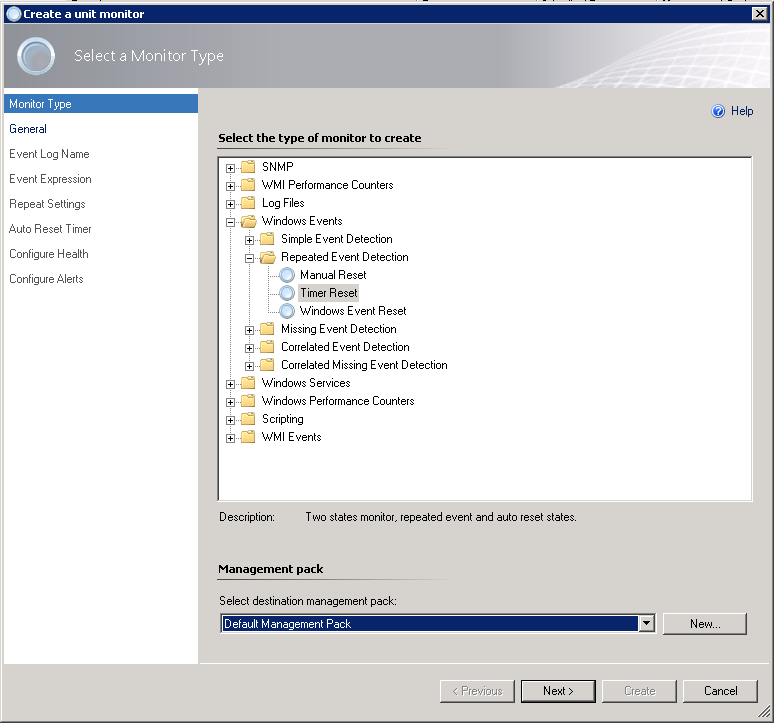
When the Create a unit monitor wizard opens up expand out Windows Events then Repeated Event Detection (we did Simple Events last time so this time I want to show you how to look for repeated events). When you get to Repeated Events you again have three choices:
  • Manual Reset - 1 State, Alert - Manually resolve
  • Timer Reset - 2 State, Alert and Auto Resolve (Time Based)
  • Windows Event Reset - 2 State, Alert and Auto Resolve
For this example we are going to use Timer Reset. Select a management pack and Click Next

In General Properties, go ahead and give the monitor a name, uncheck Monitor is enabled and Click Next

In Event Log Name select the event log you are targeting, in our case it will be Application. Click Next

For Build Event Expression enter in the ID of the event you will be looking for, and the Event Source. Click Next

In the Repeat Settings change the Counting Mode: to Trigger on count, and the Compare Count to 10. Then set the interval time to 5 Minutes. This will go out and check the log for your event and if it finds more than 10 failures in 5 minutes it will generate an alert for this event. Click Next

Next set your Auto Timer Reset to 2 minutes. This means the alert will self resolve after two minutes and close. Click Next

Now we want to configure the health settings for failure and healthy. Change Repeated Event Raised to Critical and Click Next

For Configure alerts go ahead and Check Generate Alerts for this monitor. You can configure your alert and the description as required for your particular situation. Click Create

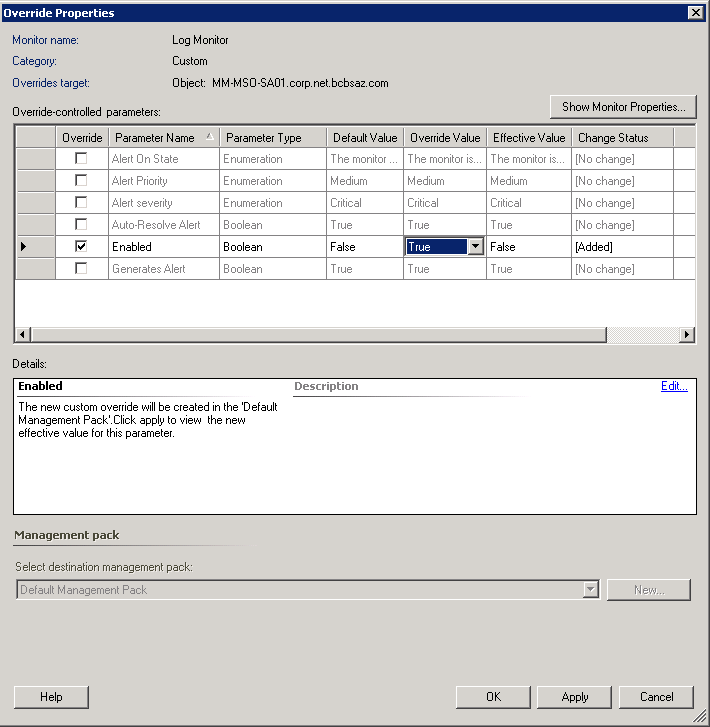
Now we need to enable the monitor for your test server. Right Click on the Monitor and select Overrides, then Override the Monitor then For a specific object of class: Windows Computer. You will be asked for the computer name, select it and Click OK. In the Override check the Enabled check box and change the Override Value to True. Click Apply

Now in Windows Server 2008R2 - How to Create an Event Log Event I showed you how to manually generate events. You can use this to create 10 failures and make sure the monitor is working correctly.


More to come!

Like this blog, give it a g+1

Windows Server 2008R2 - Manually Create an Event Log Event

So leading up to my next SCOM 2012 post How to Generate Alerts From the Event Log I first wanted to go over how to manually create events so you can test your monitoring later. Knowing how to set this up can be helpful for other things besides SCOM. You can use this in your scripting to note in the event log that a script ran, or completed. This trick can be used to write to just about any event log you wish.

The eventcreate command is what you will use to do this. You can pull up a list of switches in eventcreate by using the /? switch.  

Switch Action
/S Specifies the remote system you will be creating the event on
/U The username that will be used to execute the command
/P The password for the username. You will be asked for a password if you do not supply one
/L The event log you want to write to (i.e. System, Security, Application, etc.)
/T Specify the level of criticality of the error, Success, Error, Warning, Information
/SO You can specify the source of the event if needed
/ID You can specify the event ID for this event (between 1 and 1000)
/D This is the description of the event in quotes, "This is a test event"

The example I will be using in my next segment is:
eventcreate /l application /t information /id 1000 /so SCOMTest /d "This is a test event"

This will create an event with the ID of 1000 and a source of SCOMTest in the Application log.


More to come!


Like this blog, give it a g+1

Thursday, March 7, 2013

SCOM 2012 - How to Generate an Alert From a Log File

You may run across situations where you will be required to monitor log files to find specific entries and generate alerts based on those entries. This is actually quite easy to setup in SCOM 2012. You have the ability to comb through both .txt and .csv files and find specific events you can determine.

First go to the Authoring space.Then go to Management Pack Objects then Monitors. Go ahead and scope the list for Windows Computers. Expand out Windows Computers and Entity Health. Right Click on Availability and select Create a Monitor then Unit Monitor...

When the Create a unit monitor wizard opens up expand out Log Files then Text Log then Simple Event Detection. You have three choices here:
  • Event Reset - 2 States, Alert and Auto Resolve
  • Manual Reset - 1 State, Alert - Manually resolve
  • Timer Reset - 2 State, Alert and Auto Resolve (Time based)
For this example we will be using Event Reset which is a 2 State Monitor. Select Event Reset and determine which management pack this will be placed in and Click Next.

For General Properties, give the monitor a Name and a description if you like. The target should be Windows Computer and the Parent monitor should be Availability. I uncheck Monitor is enabled so I can enable it on specific servers later with an override later. Click Next

On the Application Log Data Source enter the path of the log file in Directory. In Pattern enter the name of the log file. If the log file has a static name you can enter it in, if the log file is dynamically generated you can use a wildcard (*) to denote the change. I.E. LogFile*.txt in place of LogFile01.txt, LogFile02.txt etc. Click Next

In Build Event Expression we will be setting the the first state which is the Error State. Click Insert. In Parameter Name type Params/Param[1], the Operator is Contains and the Value is the fail entry on the log file. In our text example it will be the word Down. Click Next

In Application Log Data Source we will be building our Second state which is the recovery state. Once again enter the location of the .txt file in Directory and the name of the file in Pattern. Click Next

For building the second expression Click Insert. Parameter name is Params/Param[1], the Operator is Contains and the Value is the recovery entry on the log file. For the recovery state we will be using the word Up. Click Next

In Configure Health we need to determine which state is which. For First Event Raised change it to Critical. For Second Event Raised Change that to Healthy. Click Next

Now we want to configure alerts for this monitor. Check the Box Generate alerts for this monitor. You can configure the alerts however fits your situation best. Click Create

The final step is to setup an override for the server you want to monitor. Right Click on the Monitor and select Overrides, then Override the Monitor then For a specific object of class: Windows Computer. You will be asked for the computer name, select it and Click OK. In the Override check the Enabled check box and change the Override Value to True. Click Apply

If you go into Health Explorer of the server you will now see under Availability the new monitor you just created. You can test the functionality by manually putting in the failed state criteria in the log file and saving it.


More to come!


If you like this blog, give it a g+1